The following instructions will walk you through the self set-up process. After your initial set-up, you can edit your company’s billing info, core values and company settings at any time by clicking on the "settings" in your Threads menu bar.
1. Enter your Billing Information

Upon creating your account, your Threads support team are available to help answer any questions and offer assistance. At the end of your free trial, you will have the option to begin your monthly subscription, take advantage of annual plan discounts or cancel your account. For more information on pricing, CLICK HERE.
2. Set up your Core Values
Here are some instructions on how to set up your core values.
Where do my organization’s core values show up in Threads?
Your organization’s core values will appear on every Culture Review and Culture Interview document. The core values you enter here will make up the vertical axis on the Threads Culture Graph.

What if my organization doesn’t have our core values set?
Every organization has core values, but they aren’t always down on paper. You can enter placeholders here and come back later to edit your core values.
Here are links to a couple of methods we use at Threads to help companies set their core values:
Core Values List with 500 Examples
How to Create Your Own Core Values List
3. Core Values Review Criteria
Your core values review criteria are the behaviors that measure each of your organization’s core values. Ask yourself, “What do these core values look like in action at my company?”
Here are some instructions on how to set up your core values review criteria
Where do my core values rating criteria show up in Threads?
Your core values rating criteria will be the specific items that you score in Threads. The core values section of your Culture Review documents will look like the screenshot below.

4. Core Values Interview Criteria
Your core values interview criteria are meant to determine if a candidate is a fit with your organization’s core values. Ask yourself, “What questions could I ask a candidate to determine if they understand this core value?”
These apply to interviewing ONLY. If you plan on using Threads only for Culture Reviews initially, you can insert placeholders here. When you are done, click the “Submit” button.

Where do my core values interview criteria show up in Threads?
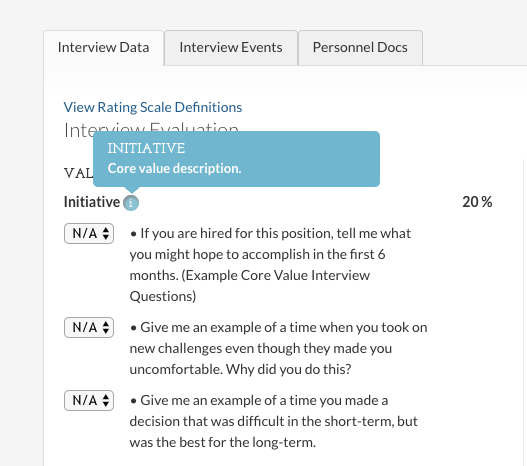
Your core values interview criteria will be the questions you use to score potential hires in Threads. The core values section of your Culture Interview documents will look like the screenshot below.
5. Company Settings
Under Company Settings you can:
- Upload your company logo (Your logo will appear on all job descriptions, reviews, interviews)
- Select how often you want to complete reviews and select your starting date for reviews (Review Cycles)
- Update the Rating Scale
- Set Up Email Templates / Feedback Email Reminders
- View and Manage Notifications from Threads
- Enforce Stricter Passwords under "Security"

6. Your "User Profile"
Upload your picture, enter your password and enter any other contact information for yourself in Threads.

7. Import Your People / Data Import
Import Employee Information. You can upload a .CSV file to build out your org chart. The uploaded file will create all of your employee profiles, departments and job descriptions. Threads will organize the information based on your reporting structure.

Required information for each employee includes:
- Employee First Name
- Employee Last Name
- Supervisor Email
- Department
- Job Title or Job Description
- Role (“employee”, “manager” or “hr”) -must all be lowercase
Additional Employee Import Tips:
- Do Not Include Yourself in the import because you have already been created in Threads.
- Make sure the “Supervisor Email” address column matches with the “Email” column or the import will not work correctly.
Import Employee Pictures. The second import is for your employee pictures. The picture import can take a while depending on your company size and Internet connection. The import will continue as long as you remained logged in to Threads.
You can leave the import screen to continue working in Threads while the pictures load.
Additional Picture Import Tips:
- Separate first and last names with either a space or an underscore. Example – John Smith or John_Smith.
- Picture names must match the employee names on your .CSV or Excel file with the employee information. Example – John_Smith will not import correctly if the .CSV file said Jonathan Smith.
- Matching is not case sensitive.
Your Initial Set-Up Is Complete!
Your org chart should look something like the screenshot below.
Next Steps:
0 Comments