Admin users can customize the questions within a self check in when the collection is still in draft status.
Once you create your check-in and decide to 'customize and send later', you will be taken to the collection detail page.

The two tabs at the top show "Build / Preview" and "Assign / Manage".

The Build / Preview tab is where you will be able to edit and modify the questions, load templates, and share a PDF.

The "Edit / Customize Form" button opens the edit form page.

Here you can modify the instructions that appear to the reviewer at the top of their check-in.

Edit Questions
You can also edit each question by:
updating the question text,

marking it required or not required,


add an optional comment field (this allows the user to decide if they would like to add more info to their response and is not available on the paragraph or short response question types),

or delete / remove a question.

You can also reorder the questions by clicking and dragging the top to the spot you want the question to be.
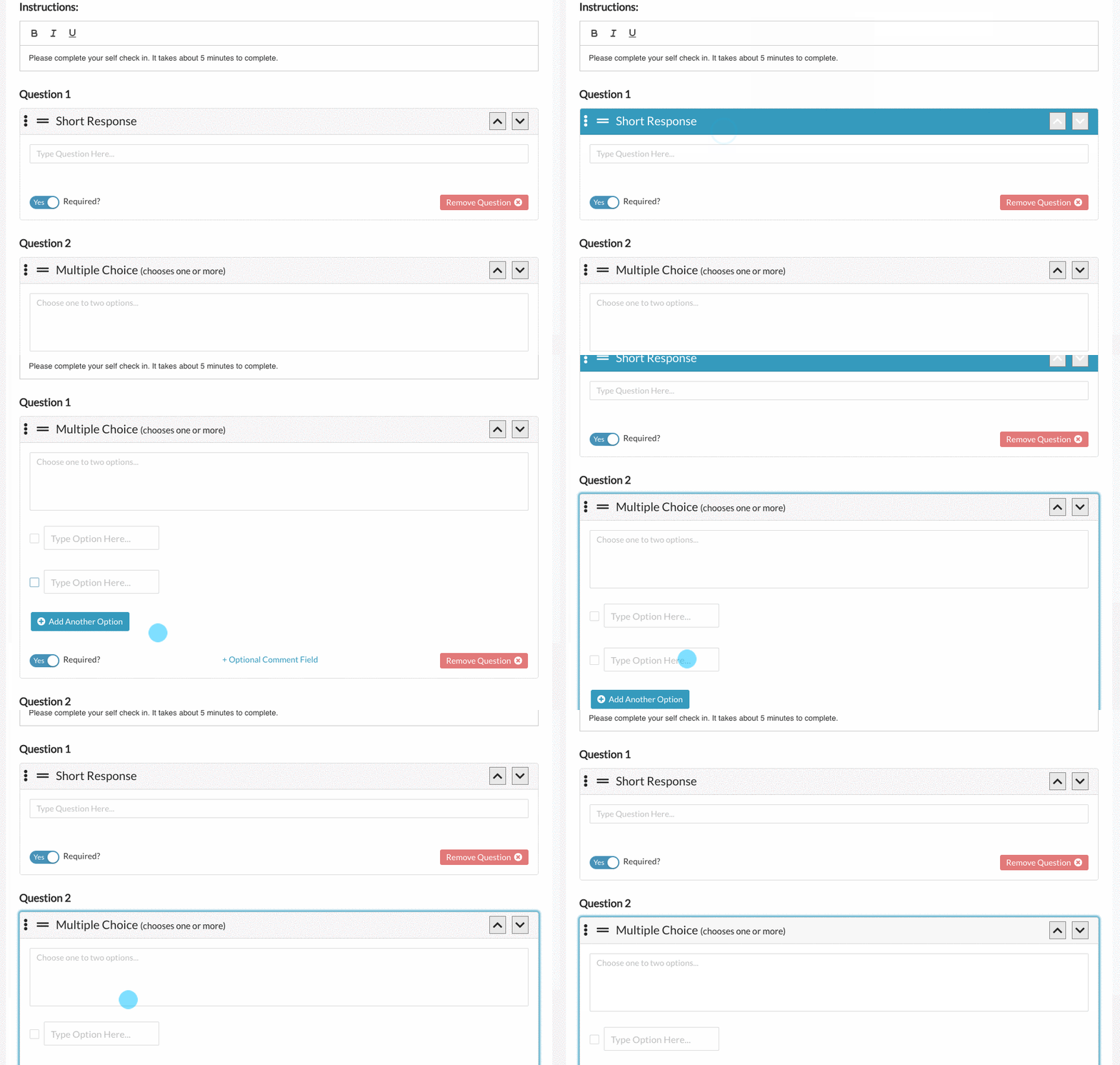
If you'd prefer, you can use the up and down arrows on the top right to also re-order the questions.

Add new questions
To add new questions, simply click on the question/answer type you would like and drag it onto the form.

Click here to learn more about the Question / Answer types available.
Load a Template
You can also load a Threads template to use or modify. You will see the template drop down in both the preview view and the edit view on the bottom right hand side.


Click here to learn more about Threads Self Check-in Templates
Start from Scratch
You can also remove all questions and start by scratch by clicking the link below the question / answer types that says "Start from Scratch / Blank Form".
Save and Preview
At any point you can save the form and preview by clicking "Save Changes" on the top right hand side.

When you click save, you will return to the preview of the check-in.

Once you customize a check-in, the next one you create will load with that version for you to use or modify further.
Download a PDF
In the preview view on the right hand side you can download a PDF to send the preview to others.

Also see:
Launching a Check-In Collection
Check In Question and Answer Types
0 Comments