As an admin user, go to "Employees" in the main navigation and select “All Employees” from the sub navigation. Then click on the employee name you would like to edit.

Once the profile loads,
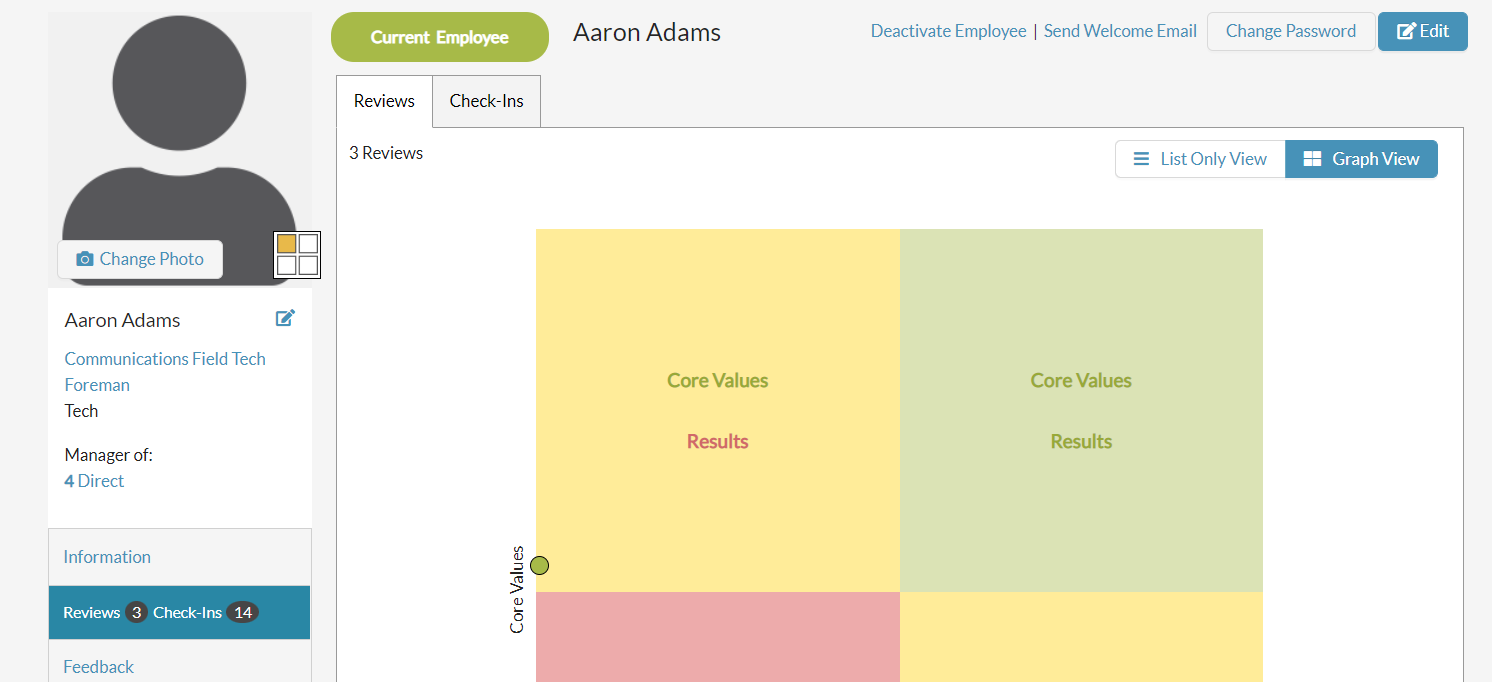
select the pencil icon next to the employee’s name OR click the pencil icon that says "Edit" in the upper right section.

The same fields from creating a new profile are editable and can be saved by selecting the “Save Changes” button. See the article called "Create / Add a New Employee" for more details on each field.
To remove / delete an employee, check out the following article: Remove / Delete an Employee or Manager (Inactive and Former)
0 Comments