As an admin user, go to "Employees" in the main navigation and select “All Employees”. Once there, select the blue button called “Add New”.

The “Create Profile” form will open.
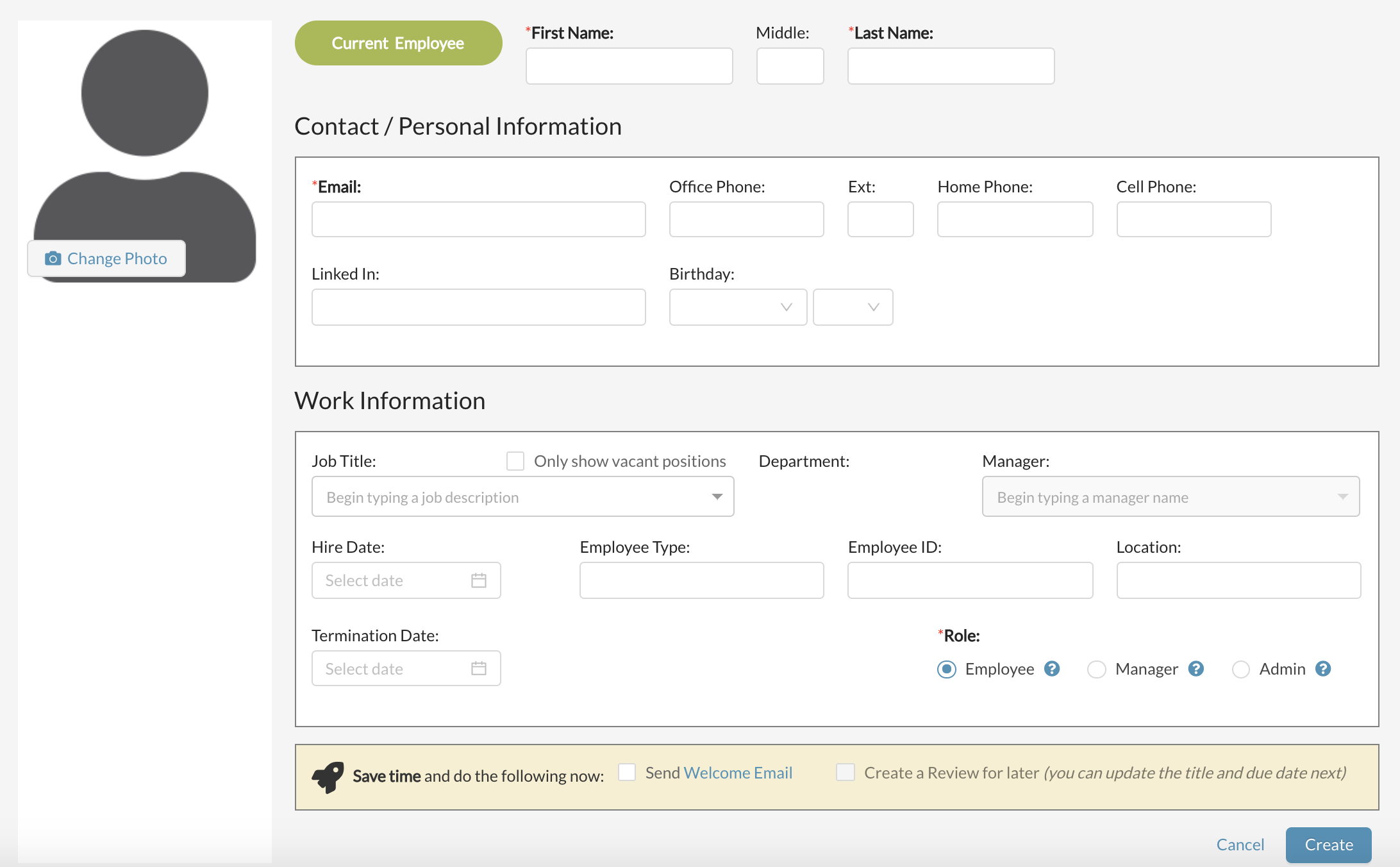
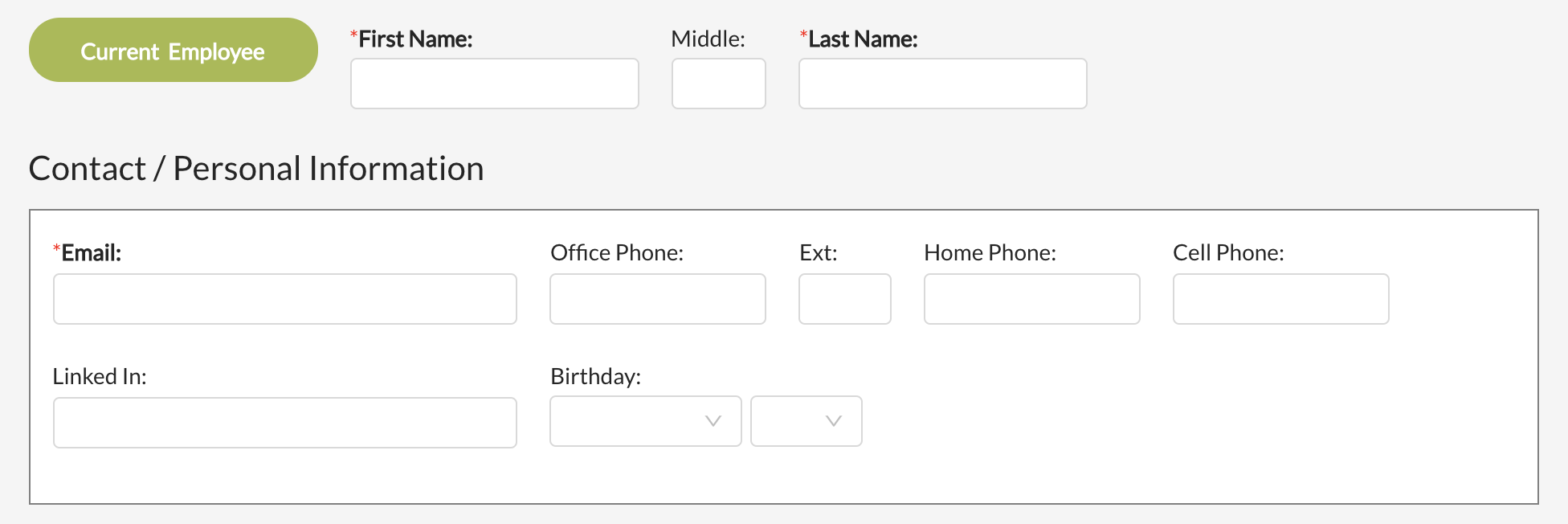
Fill out the First and Last Name as well as the Contact / Personal Information.
Then complete the Work Information Section

If the job description / Title does not exist, please review the article for “Create a Job Description” before proceeding.
Job Description / Job Title: If the job description already exists, select the job description (the department will be shown in parenthesis). If you want to just see vacant jobs (open positions on your org chart), then select the check box to "only show vacant jobs".
Manager: Assign a manager that this individual will be reporting to. If the manager does not appear in the drop down, they either need to be made a manager within Threads (Edit their profile and change their permission level to "Manager") or they need to be added to Threads first. If the person you are adding is to be at the top of your org chart, select "none".

At the bottom of the form, you must assign a user permission level.
Employee - They can see their own profile and view the org chart. They cannot edit anything other than his or her own personnel documents.
Manager - They can see full employee profiles, reviews and comments for only those that report to them (underneath them on the org chart). They will also be notified for any reviews assigned to them to complete.
Administrator - This is reserved for admins of your company. It gives the user full access to company settings, employee reviews, user profiles, org chart editing ability, adding / removing employees, applicants, seeing all comments (*except for feedback left for themselves), and everything you are able to do yourself since you are an admin within Threads.
*If there is only one admin at your org and do NOT have a manager, then your feedback received will be visible to that admin.
At the bottom of the form you will be able to opt in for the following:

Send the welcome email at this point by selecting “Send Welcome Email.” This will email the new user a link to set their password for the first time.
Create a Review for Later saves time by ensuring the employee has a review ready to be completed by their manager.
Once complete, make sure to select "Create" at the bottom of the form.

0 Comments