As an admin user, from the "All Employees" list, you can either move and employee to the inactive list or the former list.
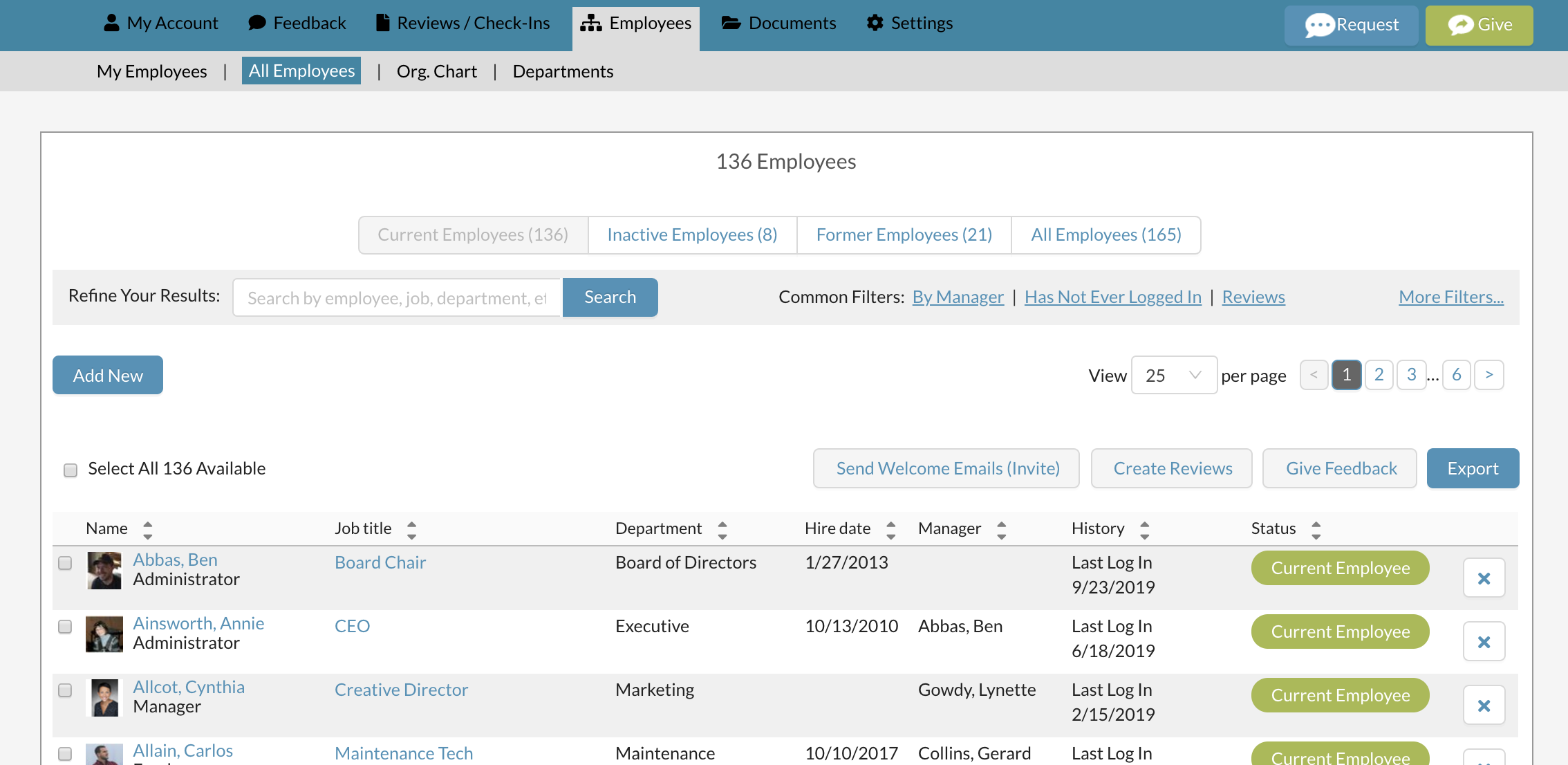
Both of these actions will do the following two things: 1. It will move the employee to the "inactive employees" or “former employees” tab. (We don’t actually delete anyone from Threads.) 2. The position that person was assigned to will remain on the org chart until the vacant position is removed, or until a new employee is assigned to it. See articles on "Delete a Vacant Position / Job" or “Hire for a Vacant Position / Job". 3. The employee will no longer have access to log into Threads.
To move an employee, select the "x" button on the right hand side.

You will then be asked if you would like to move them to the former list or the inactive list. The only difference between the two choices is wether you want to store a termination date (then choose former) and wether you intend on re-hiring them (inactive). Either way, an employee from inactive or former can be made active again later. (See: Reactivate an inactive / former employee (Return from leave / Rehire)

Selecting former allows you to put an optional termination date in for your records.
Selecting inactive does not have any other options associated.

In either choice, after selecting the blue "Deactivate" button, you will receive a success message.

Also see Reactivate An Inactive / Former Employee (Return From Leave / Rehire)
0 Comments