As a manager user in Threads, you can create a feedback request to ask any user within your organization to give specific feedback about one of your employees.
To begin, select the blue "Request Feedback" button on the top right of the screen within Threads.

Currently, you can only request feedback from one person at a time.

Begin typing the person's name, and then select them from the list.
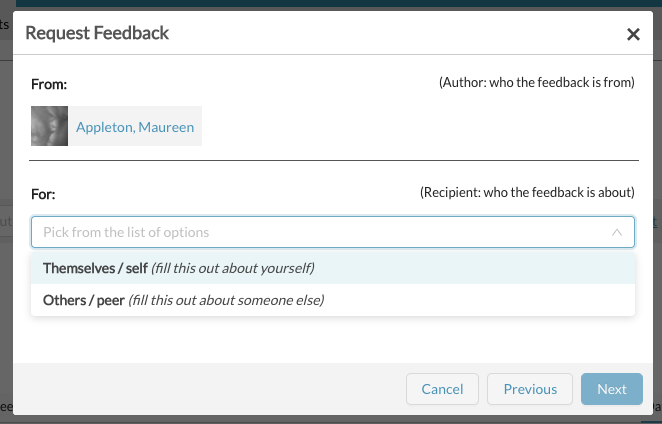
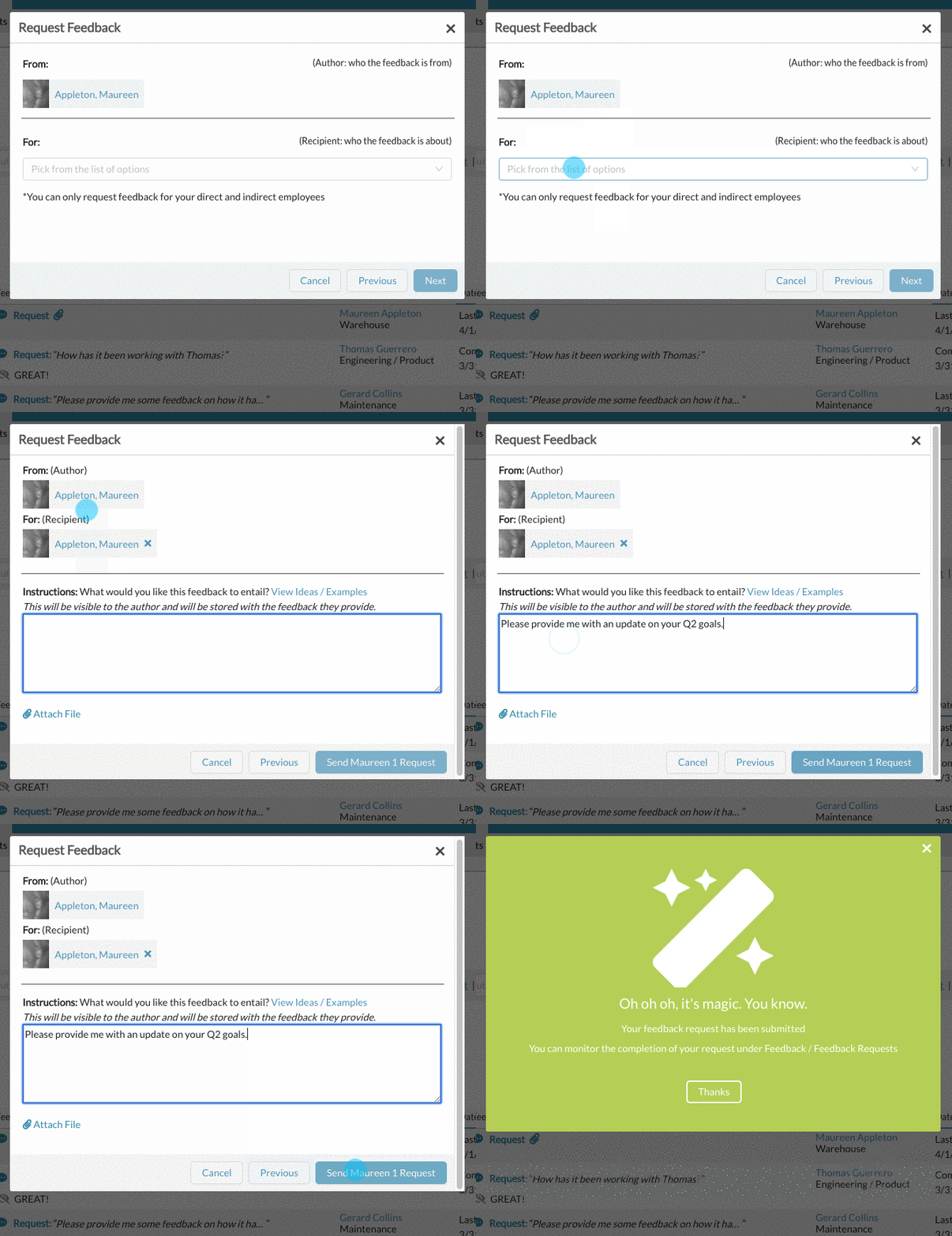
If you are requesting feedback from one of your employees (Maureen in the below example is your employee), you can pick from two options under "For". Either for them to provide feedback on themselves (Self Feedback) or feedback from others / peers.
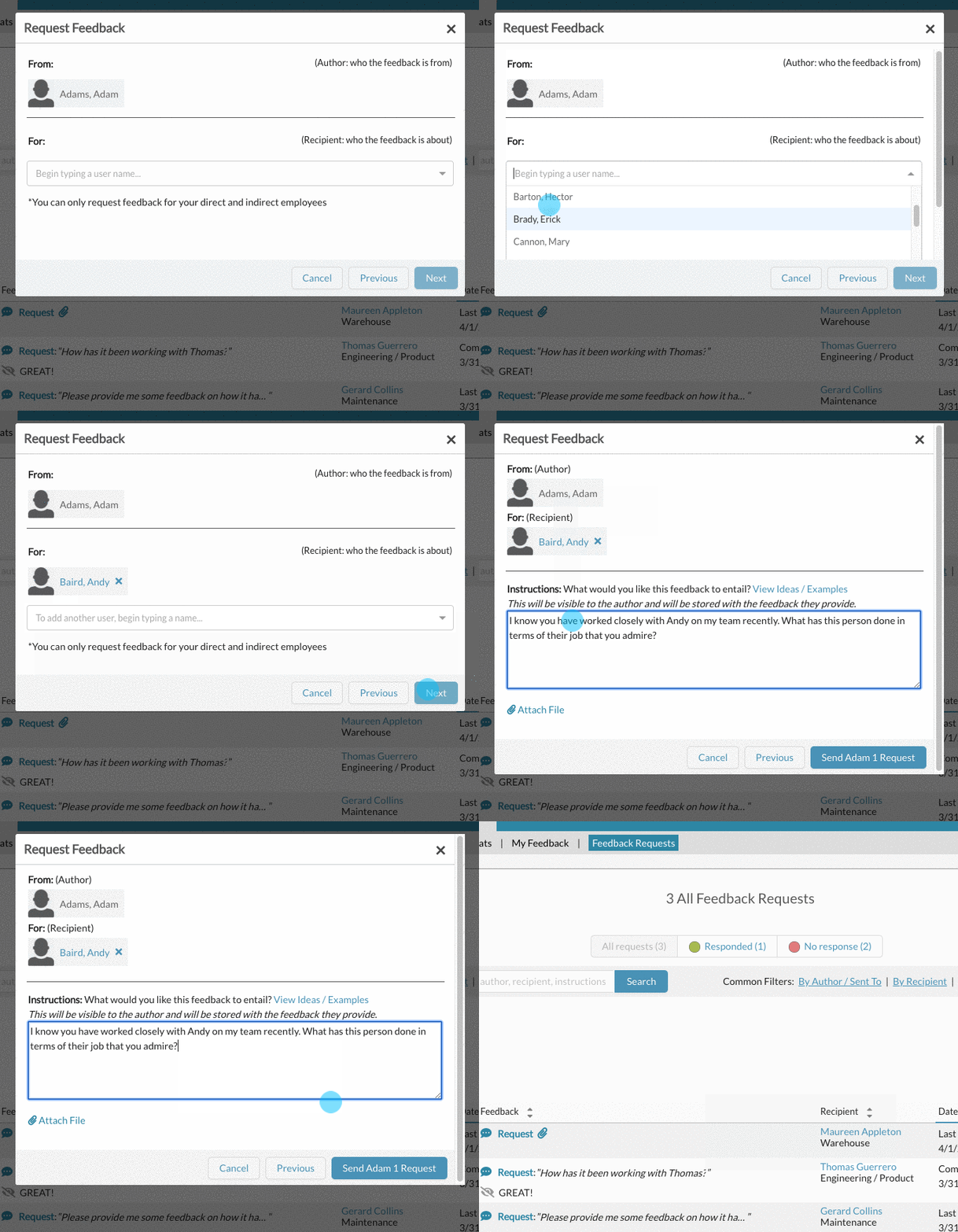
If you are requesting feedback someone that is NOT your employee (Adam in the below example is not your employee), the "For" section will only allow for adding your direct / indirect employees as you can only request feedback ABOUT your employees.

Next, you will then be able to select WHO the feedback should be about.
Themselves / self: With this option, the author will be asked to provide feedback on themself. (This option is only available with you select feedback from one of your employees)
Others / peer: With this option, the author will be asked to provide feedback on someone else (You can only request feedback For / about one of your employees).
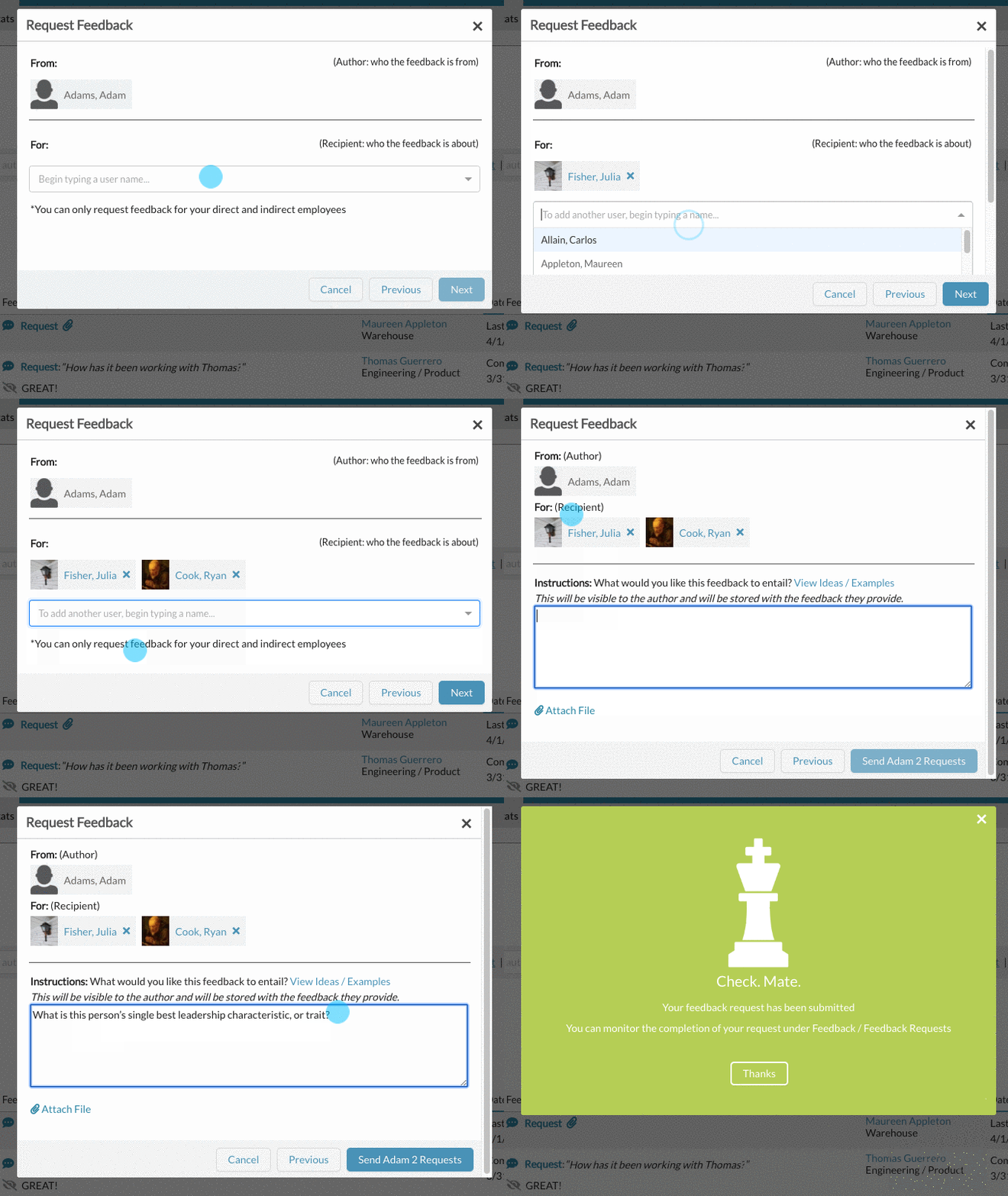
You can also request feedback for multiple employees under you from the same person.
When adding your custom instructions, you can also choose to include an attachment. This attachment will be available for the user to reference and download when fulfilling their feedback request. For ideas / examples of feedback request instructions, click here.

Once you successfully send the feedback request, the author you selected will be emailed the instructions and any attachments you have provided. The author will also have an alert show up in their to do list to complete the feedback request.

Also see, How to track Feedback Request Completion and How to Send Feedback Request Reminders
0 Comments