As an admin, you can reactivate an inactive or former employee.
On the employee list, there are 3 tabs (Current Employees, Inactive Employees, Former Employees).
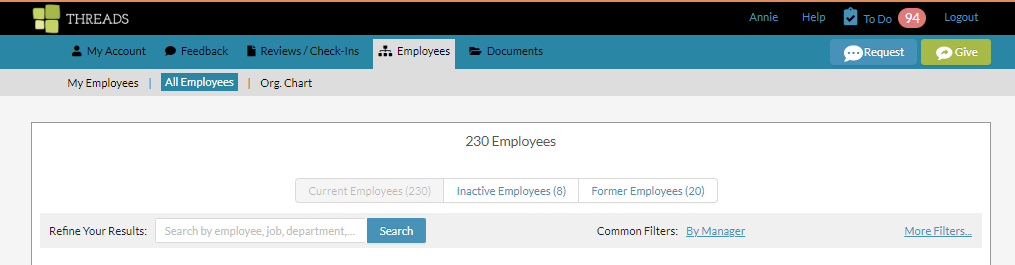
Employees that show up on the inactive and former lists cannot log in to Threads.
From the Inactive Tab
The inactive tab will display any employees that have been made inactive by an admin, or any employees that have yet to have a job description assigned to them - meaning they are not on the org chart yet.
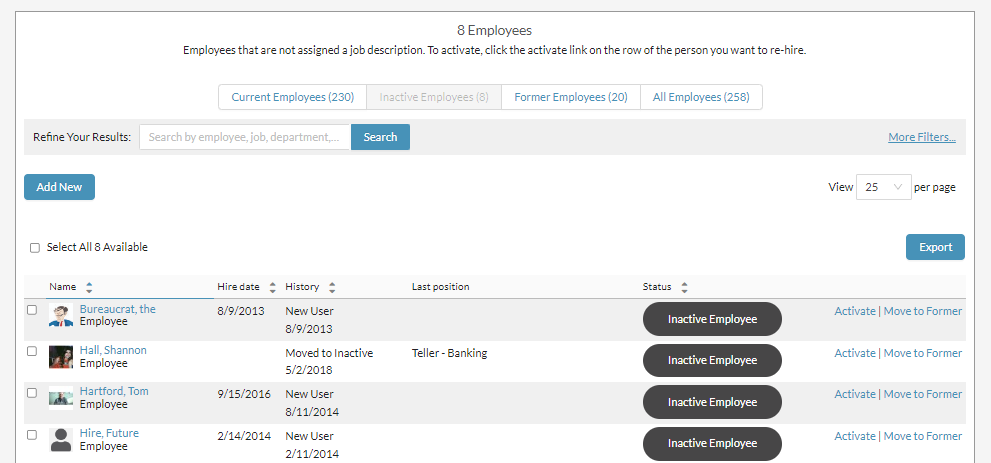
To reactivate an employee from the inactive tab, select the "activate" link next to the individual on the right hand side.

You will then get a modal asking for a job and manager assignment in order to make the employee current.

Job Description: If the job description already exists, select the job description (the department will be shown in parenthesis). If you want to just see vacant jobs (open positions on your org chart), then select the check box to "only show vacant jobs".
Manager: Assign a manager that this individual will be reporting to. If the manager does not appear in the drop down, they either need to be made a manager within Threads (Edit their profile and change their permission level to "Manager") or they need to be added to Threads first. If the person you are adding is to be at the top of your org chart, select "none".
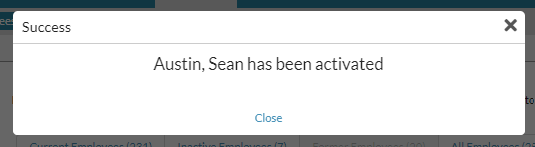
Upon selecting the blue "Activate" button, you will receive a success message.

From the Former Tab
The former tab will display any employees that have been moved to former by an admin.
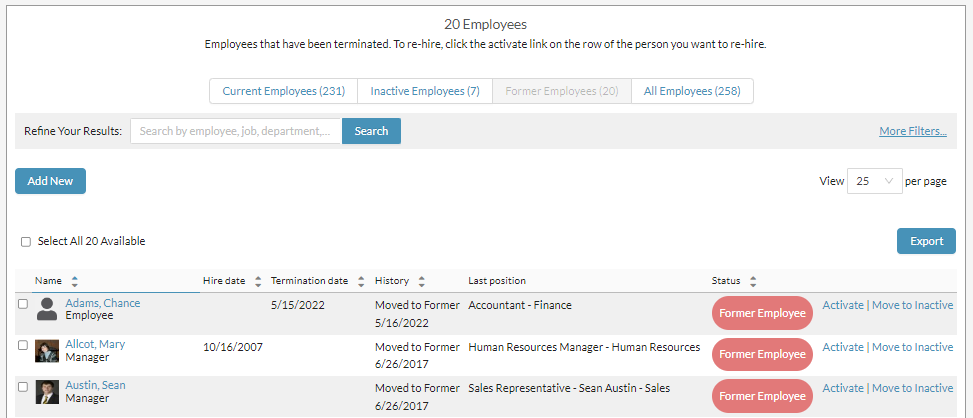
To reactivate an employee from the inactive tab, select the "activate" link next to the individual on the right hand side.

You will then get a modal asking for a job and manager assignment in order to make the employee current.
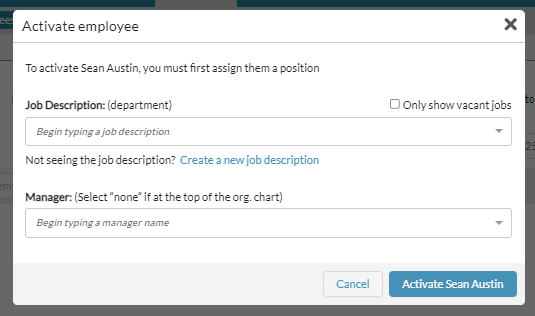
Job Description: If the job description already exists, select the job description (the department will be shown in parenthesis). If you want to just see vacant jobs (open positions on your org chart), then select the check box to "only show vacant jobs".
Manager: Assign a manager that this individual will be reporting to. If the manager does not appear in the drop down, they either need to be made a manager within Threads (Edit their profile and change their permission level to "Manager") or they need to be added to Threads first. If the person you are adding is to be at the top of your org chart, select "none".
Upon selecting the blue "Activate" button, you will receive a success message.
Also see: Remove / Delete An Employee Or Manager (Inactive And Former) and Edit An Existing Employee
0 Comments