There are several ways to add to an existing self check-in.
Go to a collection directly by clicking on the collection name under "Check-Ins" in the main nav.

Or, you can open the create a new check-in modal by clicking on "Create Check-In".

Then select "Add to Existing".
You can then click on the name of the collection you would like to add reviews to.

If the collection is "Closed" you will need to re-launch it to add reviewers
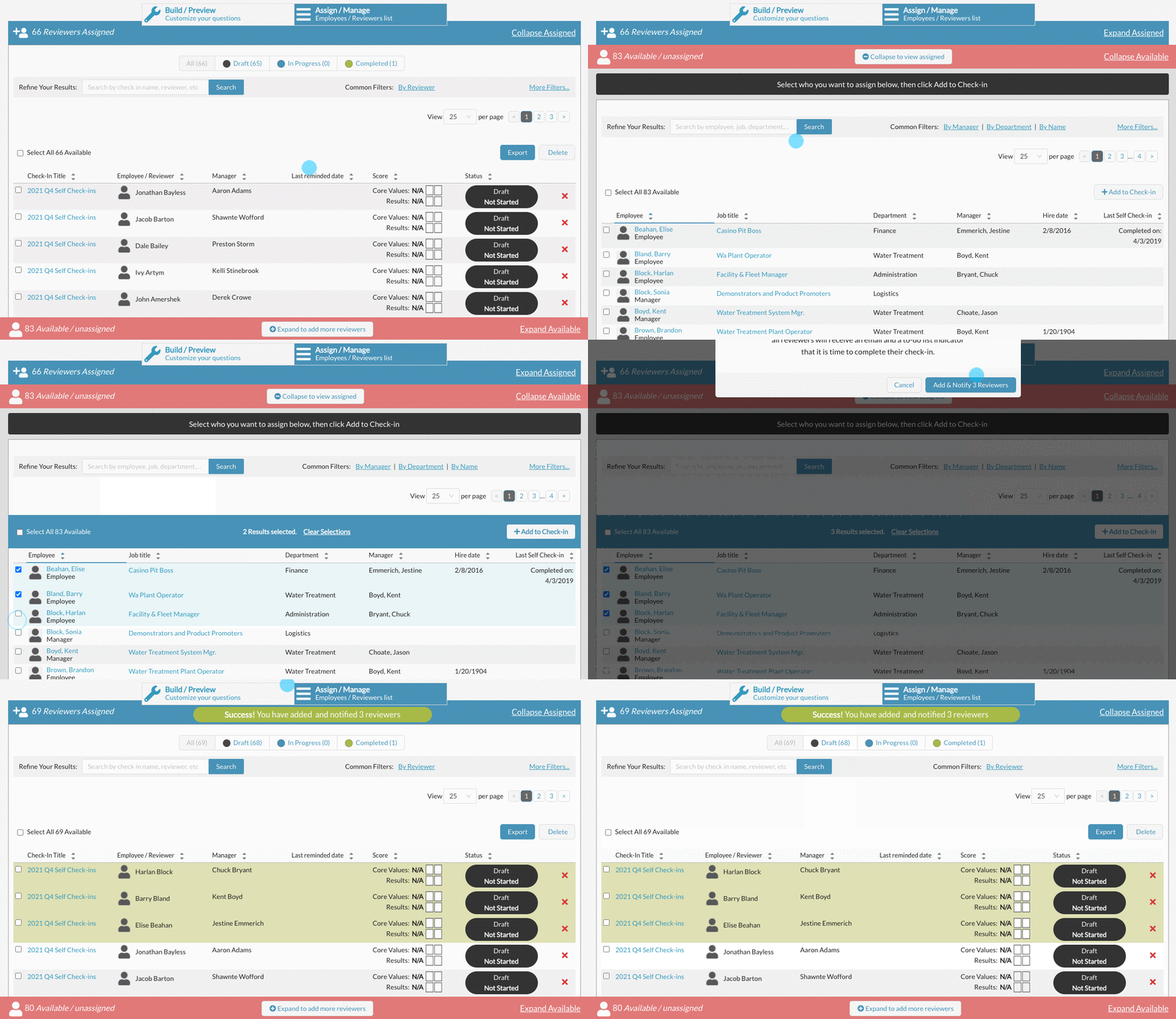
Once you are in the collection detail view you will see two bars: Reviewers Assigned (at the top), and Available/Unassigned (at the bottom).

The reviewers assigned bar shows all the individuals who have been assigned a check-in within the collection.

You can remove individuals from the collection (which deletes their check-in) by clicking the red X. You can also send reminders by clicking the checkboxes on the left, then the "Send Reminders" button.
At the bottom of the screen you will notice a red bar if there are people not assigned, or black bar, if there is no one to display.

Clicking on the Available/Unassigned bar will open a new list. This list shows those individuals within your organization who do not have a check-in within this collection.

Select the checkbox next to any individual you like and click "Add to Check-In". If the check-in collection is Live (Launched), the reviewers will be notified immediately that they now have a check-in to complete.
For more information on managing a collection, see:
How to Send Self Check-In Reminders
0 Comments