As an admin user, you can view all the feedback that has ever been left in Threads - *except for your feedback received - unless the author has decided to make it visible to you. (*If you are the only admin at your org and do NOT have a manager, then your feedback received will be visible to you always.)
To view all feedback, To go to the main navigation and click on "feedback".

The "Trends" view will load. Simply click on "Manage" to see the entire feedback list.

On this list, you will see all of the feedback left in your organization sorted by the most recent.

You can also change how you want to sort this information by clicking on the column headers (Recipient, Files, Author, Date). The green eye denotes which feedback was made visible to the recipient by the author. The grey eyeball denotes feedback that is NOT visible to the recipient.
There are several ways to filter the feedback list.
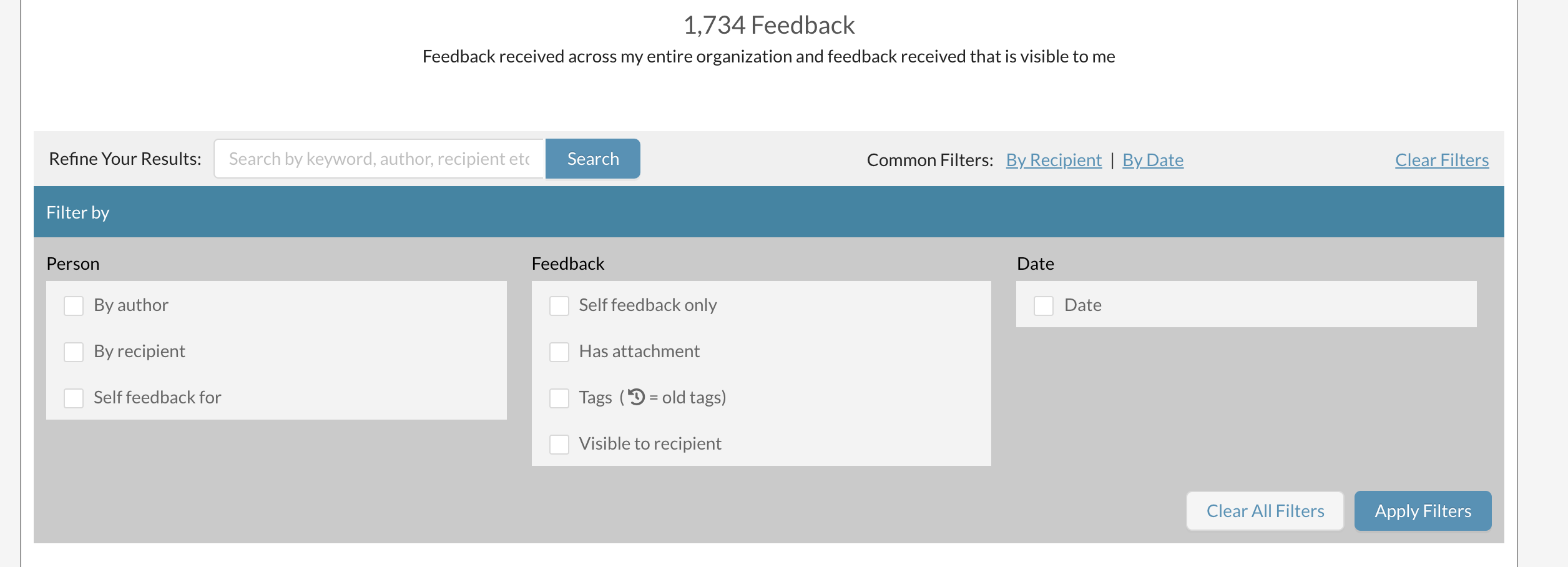
Filtering by author(s) lets you pick all the feedback written by that author. You can also use this filter to see if an individual has not left ANY feedback in Threads. (All see: Feedback by Employees / Employee Stats)

The recipient filter allows you to see all of the feedback an individual has received over all time. (You can also go to the employee's profile to see all time feedback)
You can also filter by tags that have been attached to feedback. The tag filter also lets you select tags that are no longer available, but have been used in the past - denoted by the icon shown.
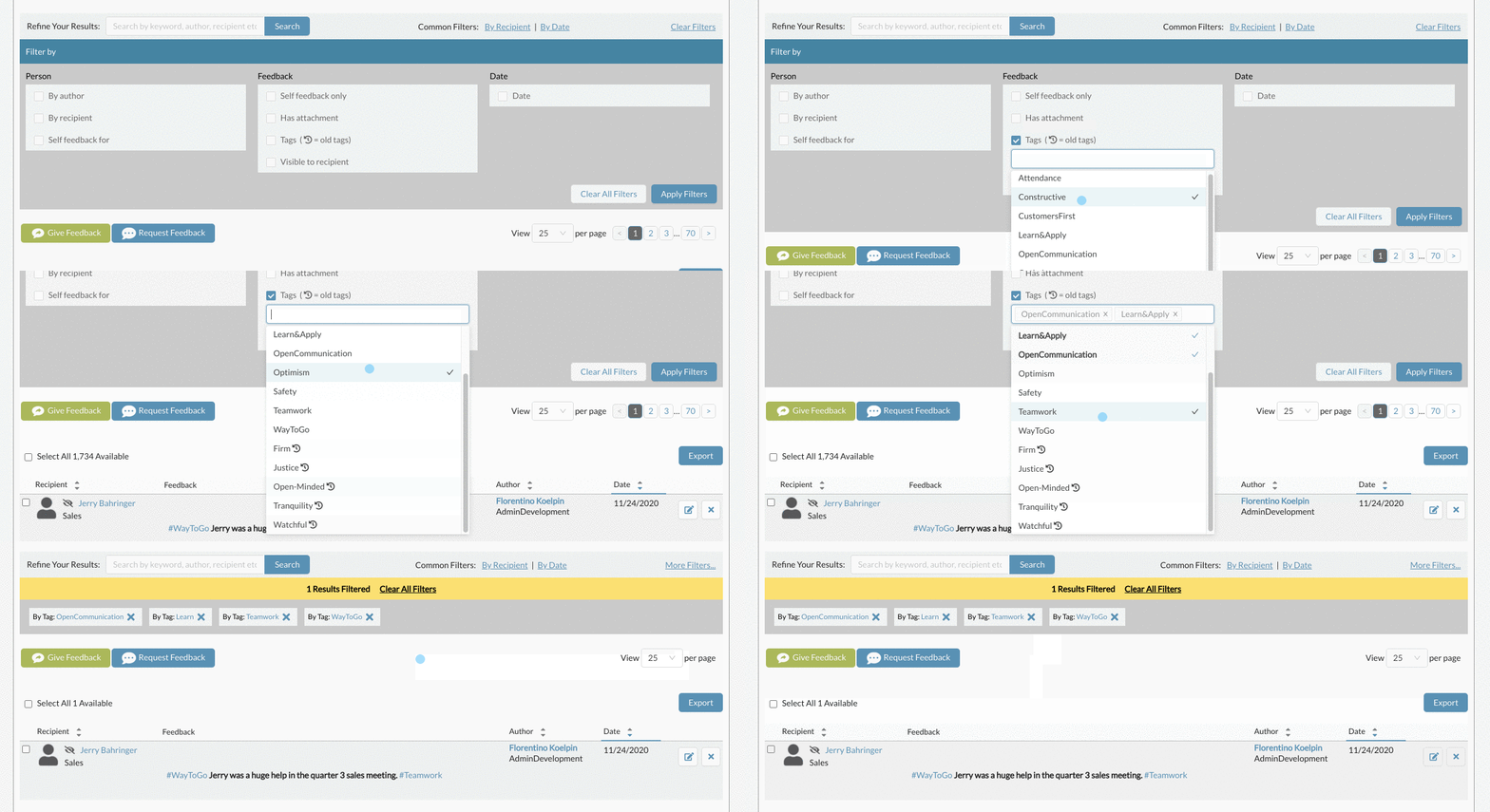
You can also use the date range filter to only see feedback that was given during a certain period, such as the last time you logged in.

You can also filter by what feedback has been made visible to the recipient.

There are two export options available as well (PDF, CSV). Once you decide on what information you would like to export, go ahead and apply your chosen filters to the list.
After applying your filter, click on the select all check box at the top of the list.

A message appears in orange at the top of the list if you have more feedback available on other pages. You can click on "select all" to include what is hidden on other pages of the list.
Next, click on the export button at the top left.
Then select if you want a CSV or a PDF export.

If choosing a CSV, you can customize the fields and the order of information you would like.

If choosing a PDF, your PDF will then automatically open for you to download or print.

If you have any questions, please email us at support@threadsculture.com.
0 Comments