As an admin, you can export review data from the review list.
If you are looking to JUST export comments, then go to the feedback list and follow the export instructions here: View All Feedback / Comments For All Employees
First, go to "Reviews" in the main navigation.

Then select which tab you would like to pull your data from. 
All: Shows you all the reviews across all statuses.
Drafts: Shows all reviews that are in the draft status.
Past Due: Shows all reviews that have not reached the final stage of “Accepted” yet and are paste their due date. (To learn more about paste due reviews, see: Past Due Review)
In Progress: Shows all reviews that have been saved and completed, but have not been released to the employee yet. (You will not be able to see any data on your individual review unless it has been released to you by your manager.)
Completed: Shows all reviews released and pending acceptance. And all reviews Accepted (by yourself or a designated leader).
To export, you can apply filters first to represent the data you would like to extract.
First, apply your chosen filters if wanted. Then, select all of the results on the page by selecting the check box for all. The click on the "Export" button on the top right.
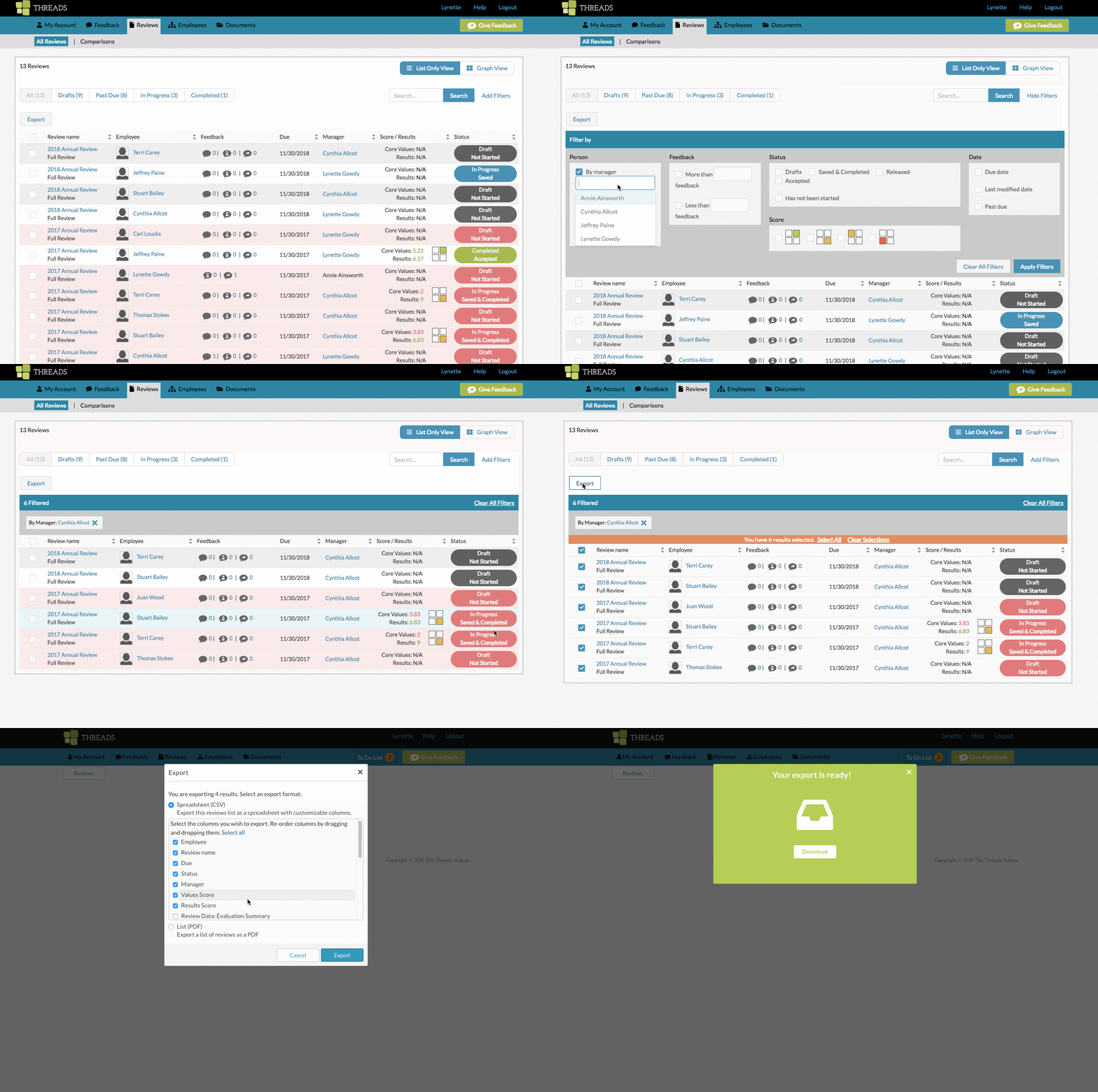
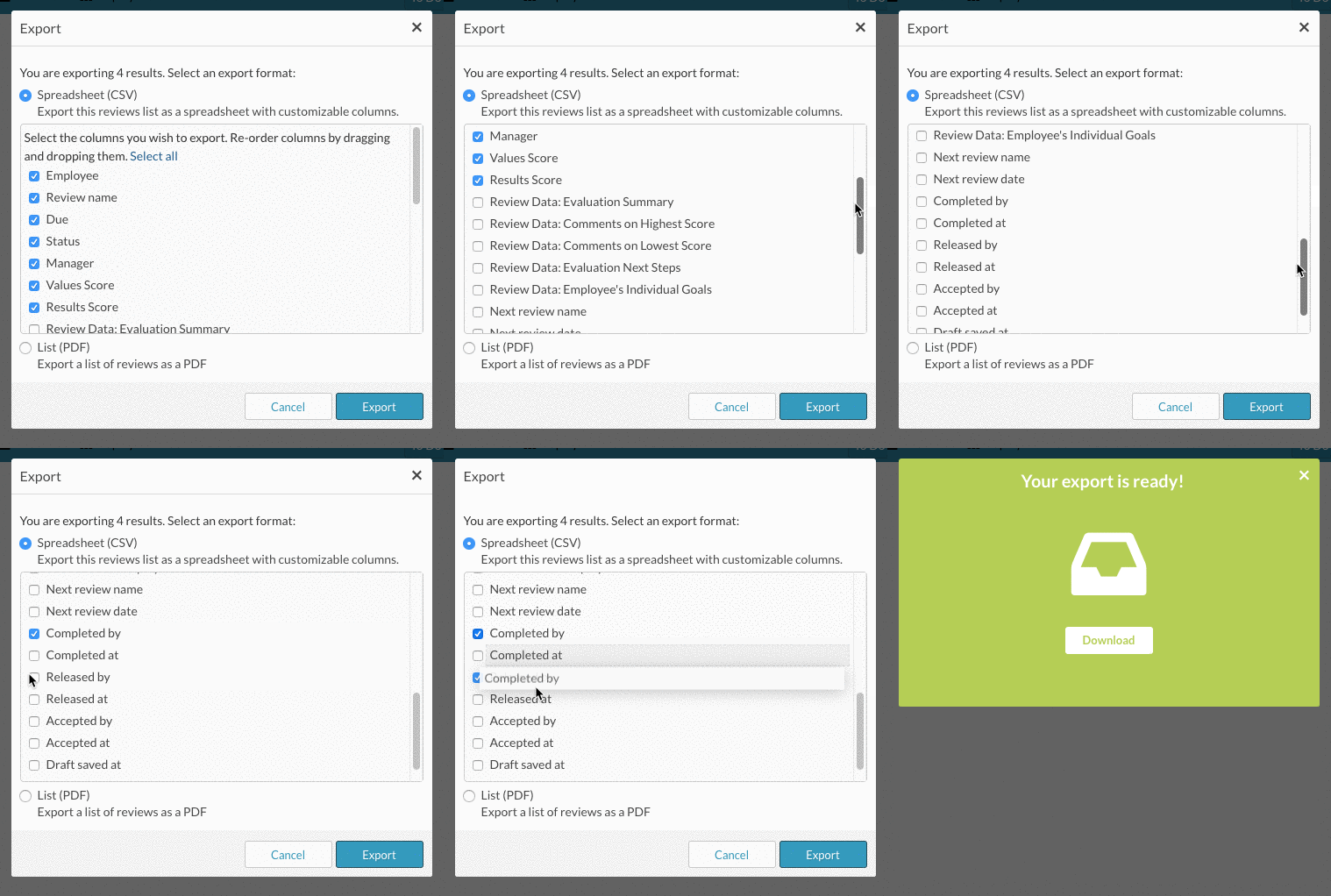
If you choose a CSV export, you can select the specific columns you want, and you can drag and drop the columns to choose the order it appears in the CSV.
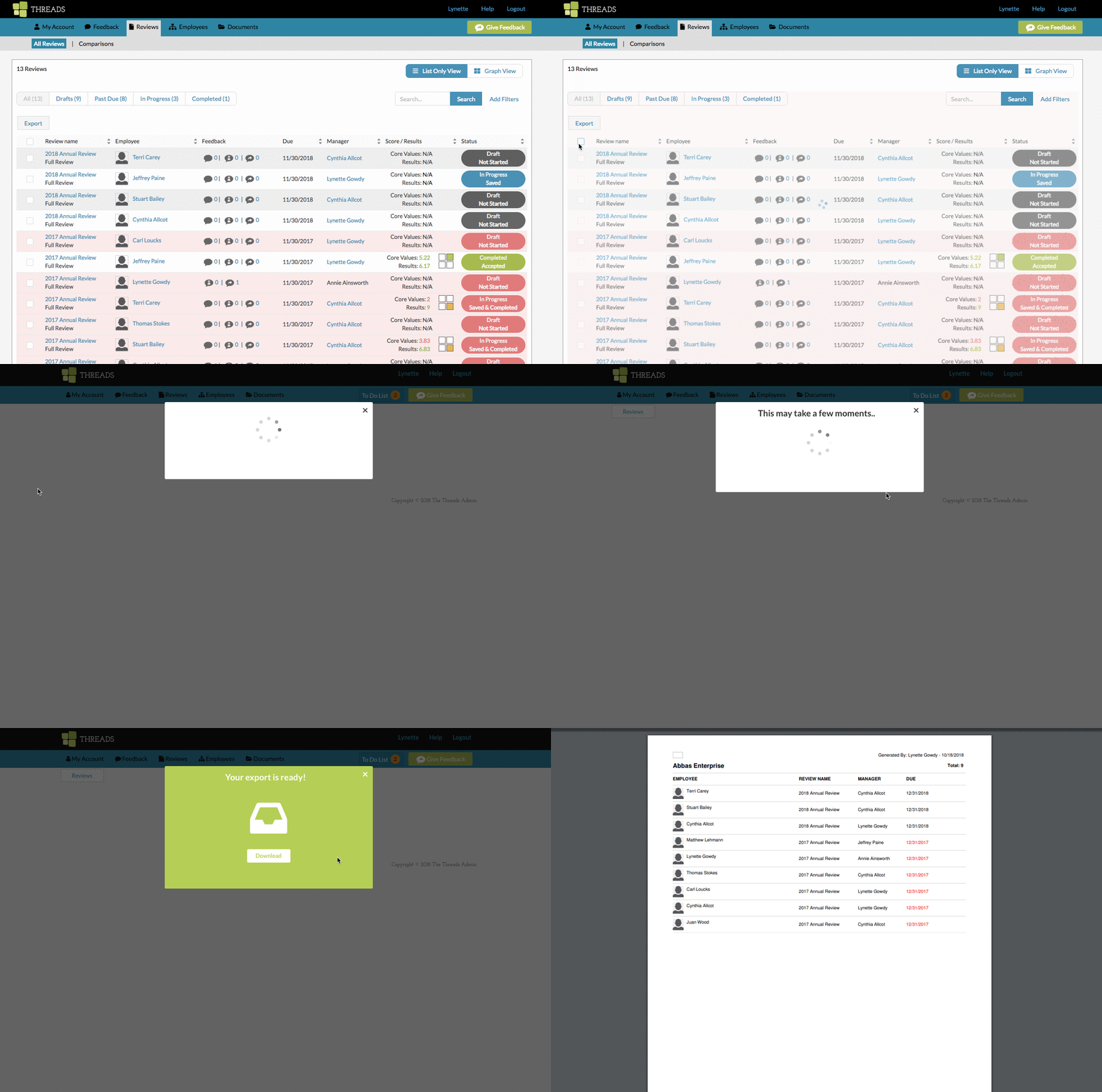
If you choose a PDF Export, you will get a nicely formatted PDF, but you are not able to select specific data you want exported.
0 Comments