This article describes the technical process of setting up Single Sign On for your Threads account. To turn SSO on for your company, you may need to involve your IT administration to help set it up.
What is Single Sign On (SSO)?
Threads Single Sign-On allows customers to use their own login system to authenticate their Threads user accounts.
How it works
Threads SSO is accomplished through the SAML protocol. In order for SSO to work for your account, the correct SAML configuration must be setup on the Service Provider side (that's Threads) and the Identity Provider side (that's whatever system your company uses to login). Learn more about SAML terms here.
Configuring the Service Provider (Threads)
To start configuring SSO within Threads:
1.) Login to Threads with an administrator account
2.) Click on Settings > Company Settings > then Security
3.) At the bottom of the security page, click "Setup Single Sign-On".
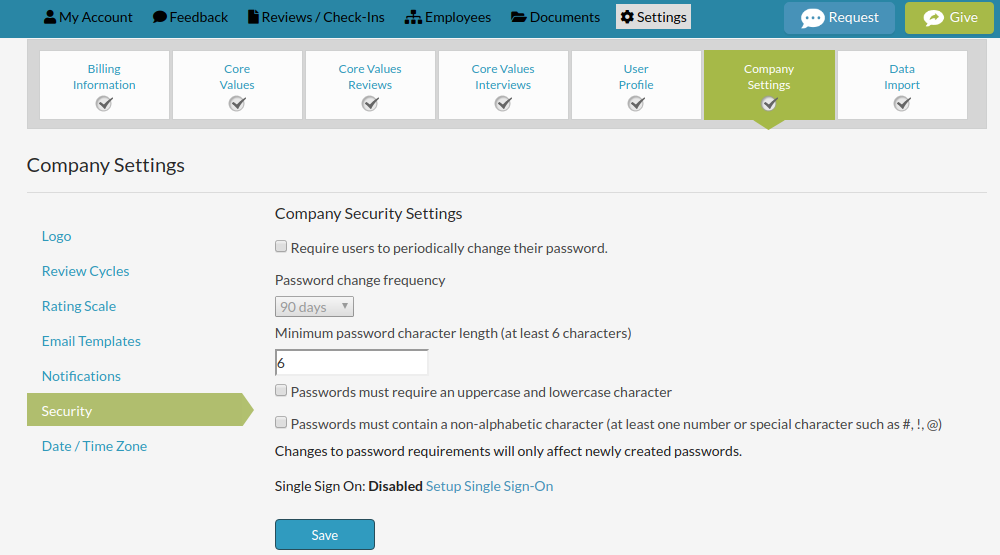
This will bring you to a setup page that allows you to configure your SAML identity provider information and credentials to complete the SSO connection.
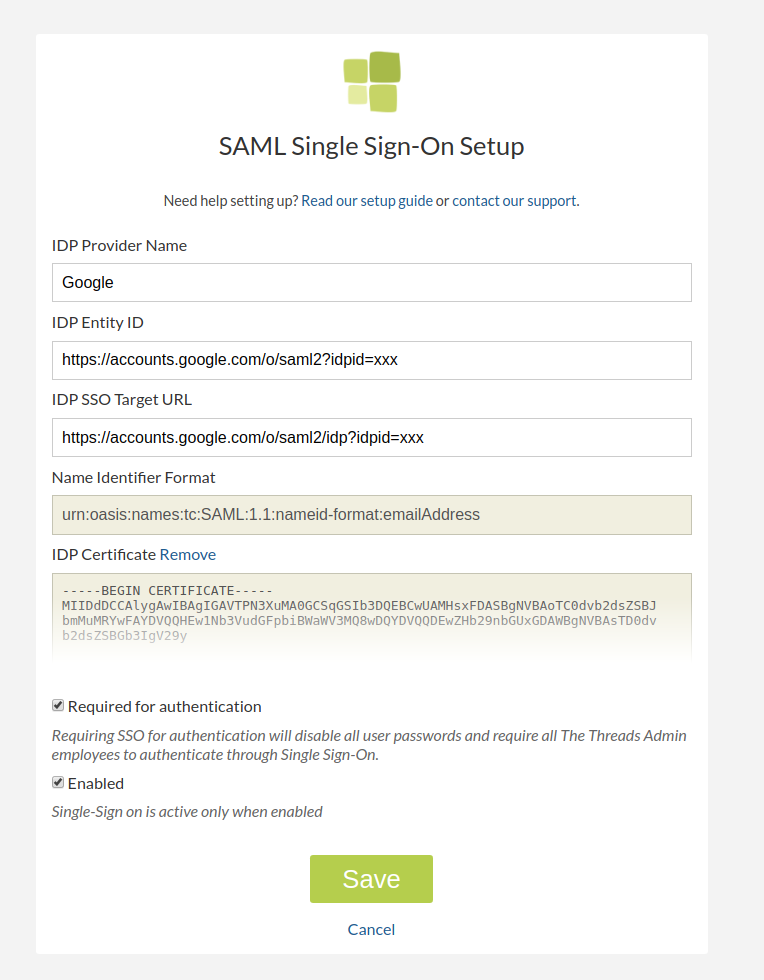
SAML Setup Page Fields
IDP Provider Name: this is whatever name of the identity provider you want to use. You can type anything in this box and it will appear as "Login with <IDP Provider Name>".

IDP Entity ID: This is the URL endpoint that the Threads application will use to fetch metadata about your user accounts. This is most commonly known as an entity ID or metadata URL. This URL must use a secure (SSL) connection.
IDP SSO Target URL: This is the URL endpoint that the Threads application will use to make a request to authorize a user account. This is commonly known as the Single Sign-On or authorization URL endpoint.
Name Identifier Format: Currently Threads only supports email address as a method for authentication so this field cannot be changed. If you require a different name identifier format, please contact engineering@threadsculture.com.
IDP Certificate: This is the public cryptographic key that will be used to sign each request and read the request response. This can either be uploaded via file, or pasted in to the IDP Certificate text field.
Required for Authentication: By ticking this checkbox, user accounts for your company will only be allowed in via SSO. Leaving this box unchecked will allow your users to login with a normal Threads password as well as SSO.
Enabled: By ticking this checkbox, your SSO settings will go live and users will be able to login with SSO. This checkbox cannot be ticked until the IDP Entity ID, SSO Target URL, and IDP Certificate are provided.
Service Provider Example Configurations
Google gSuite

Make sure to switch "YOURPORTAL.ourthreads.com" to your company's Threads portal URL
Office 365
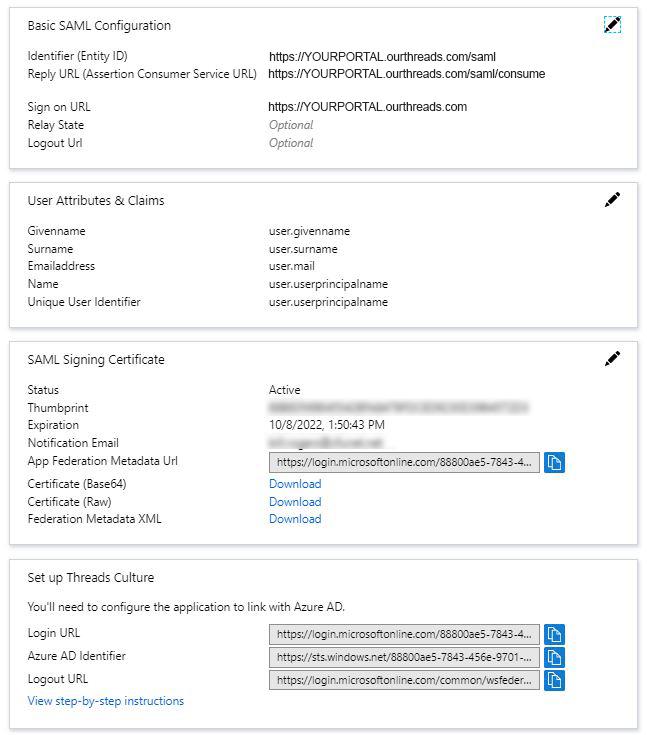
Make sure to switch "YOURPORTAL.ourthreads.com" to your company's Threads portal URL
If you have further questions about setting up Single Sign-On for your Threads account, please contact support@threadsculture.com.
0 Comments