If a self check-in is created for you, then you will receive an email letting you know it is time to begin your check-in.

You will also have a to do list notification within Threads.

The example below is the default self check-in. Your organization may have customized the questions on your check-ins. If the questions are customized, please refer to the instructions on the actual check-in you have received from your HR team.
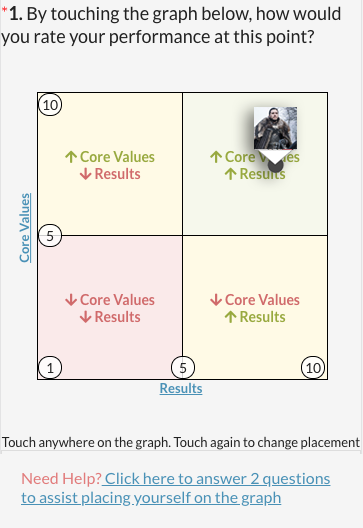
Question 1: Touch the graph (or click if you’re on a desktop) to place yourself. You can also click on "Results" and "Core Values" (the graph labels) to see the criteria for each.

If you are having trouble determining where you should place yourself, go ahead and click on “Need Help? Click Here…”. This will expand to show two questions that will help place your icon on the correct spot of the graph.

Question 2 - 4: These questions will all be answered by rating your response with a 1 - 10. 1 = Strongly Disagree and 10 = Strongly Agree.

If you want to provide more information to support your rating, click on “+ Optional Comment:”.

Clicking this will open up a text area for you to type or voice to text supplemental information. If you decide you don't want to include an optional comment, just click "- Optional Comment" to remove.

Question 5 - 6: These two questions give you the freedom to respond in the way you feel communicates best with your manager.

At any point in the process, you can select “Save and Exit” to save your work without completing it.
Once all the questions have been answered, you will be able to select “Complete”.

After you click "Complete" a window appears to confirm. If you want to move forward, click "Mark Complete".
For information on editing your self check-in, click here.
0 Comments