As an employee, you may be asked to provide feedback through Threads utilizing our Feedback Request feature.
There are two ways to find out a feedback request has been assigned to you.
First, it will appear in your to do list on the top right hand side of Threads. Click on To Do to see your list.


Just click on the request to have the give feedback modal along with the request instructions appear.

The second way to know if you received a feedback request is through email.
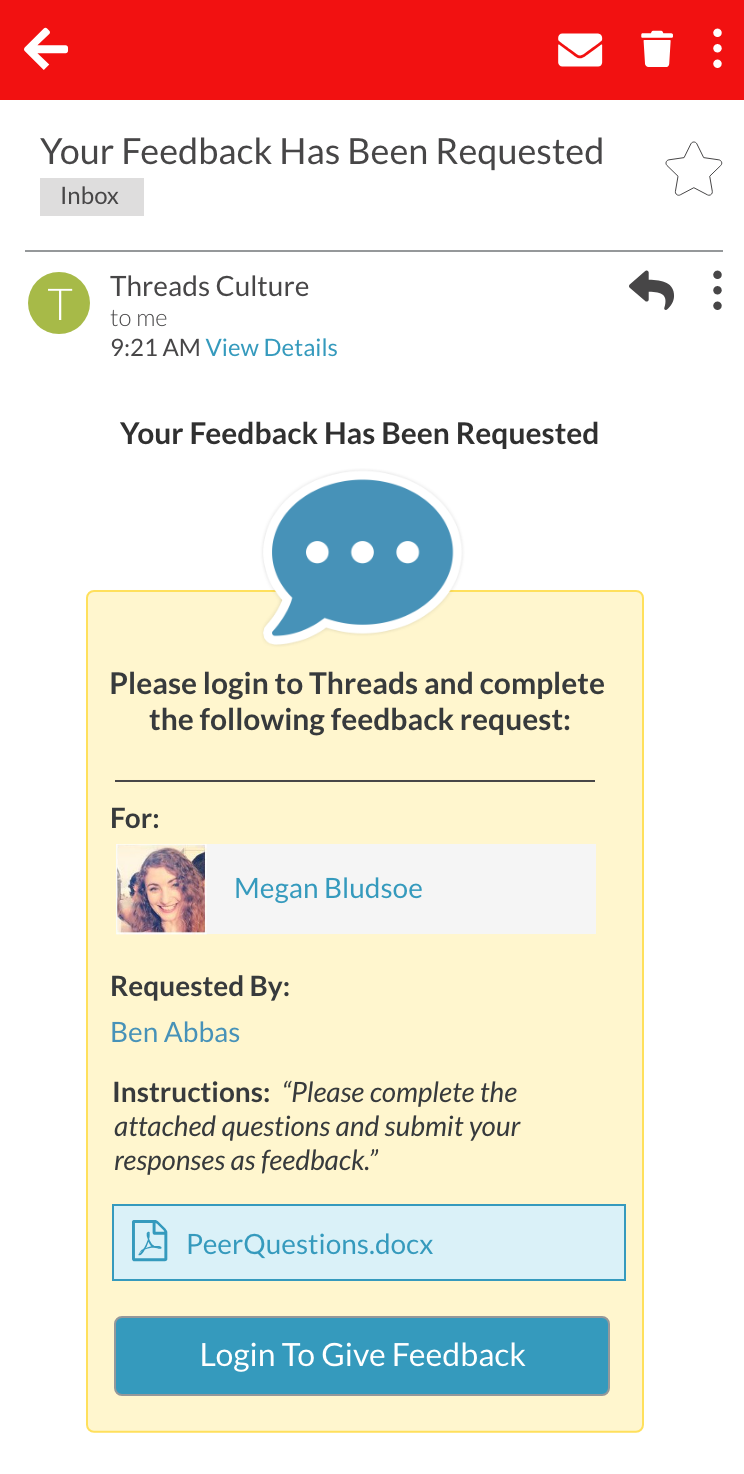
The email will contain the following:

Recipient / For: Who the feedback should be about. This may also include self feedback or it may even allow you to choose someone.

Requested By: Shows which admin at your org requested this.

Instructions: Shows what instructions the admin would like you to consider when giving the feedback.

Attachments: The admin may or may not include any attachments for you to reference as part of their instructions.

Login to Give Feedback: Clicking this button will take you to Threads with the give feedback modal open displaying the admin instructions for you to accomplish this request.
Once you are logged in, here is what will appear:
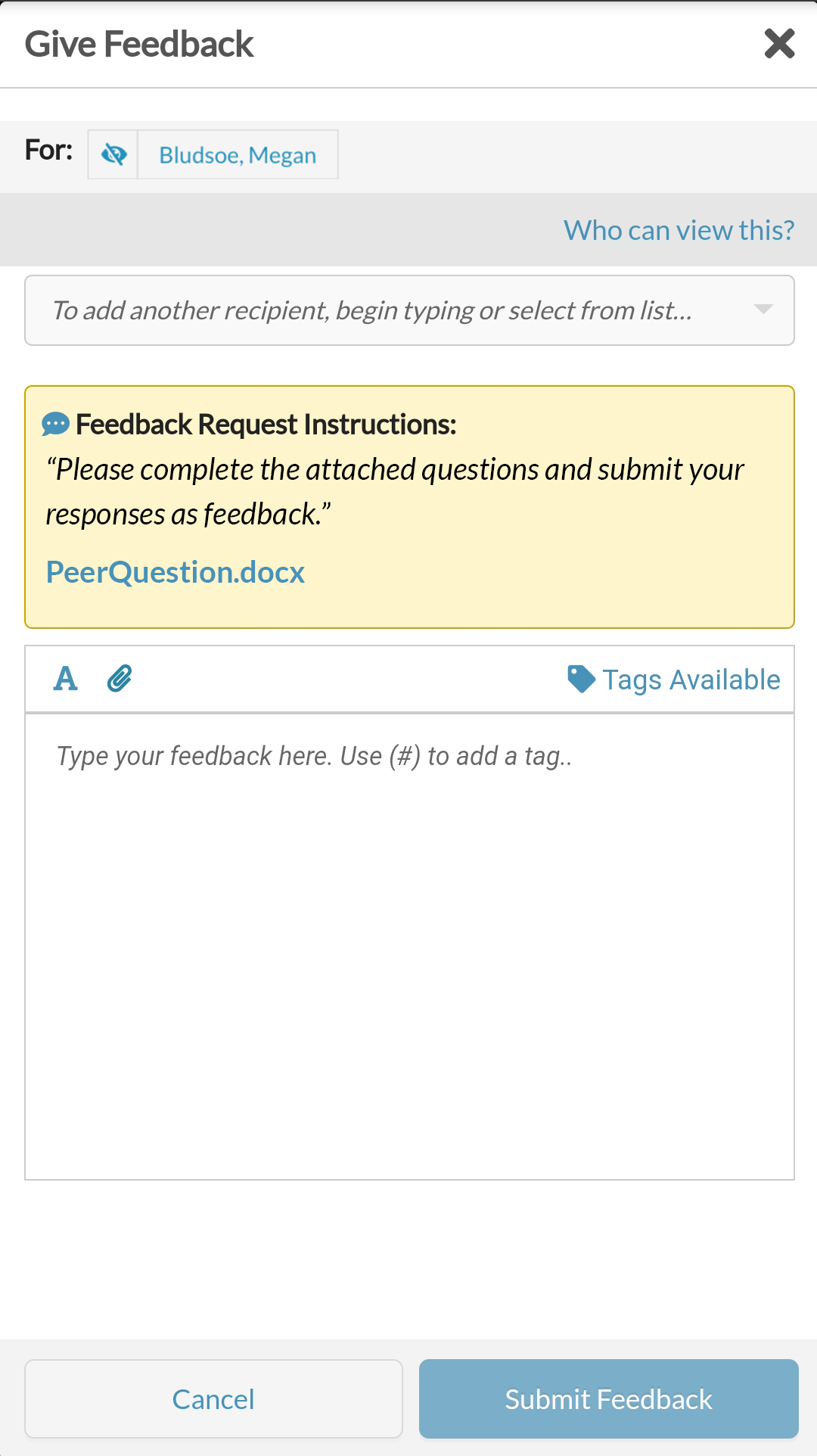

Recipient: The recipient you have been asked to provide feedback for will already be populated in the give feedback modal for you! If you were asked to choose someone, then you can begin typing their name in this spot. Just like with the normal give feedback process, you can choose to make the feedback visible to the recipient if you like. Here are some instructions on how to do that. (Short version: to make it visible to them, just click the eyeball next to their name!)

Feedback Request Instructions: Will appear, along with any attachments the admin has included for you to reference.

Type your feedback: And just like the usual process of giving feedback, go ahead and type your feedback and attach a file if needed! Don't forget to click "Submit Feedback" when you are done!
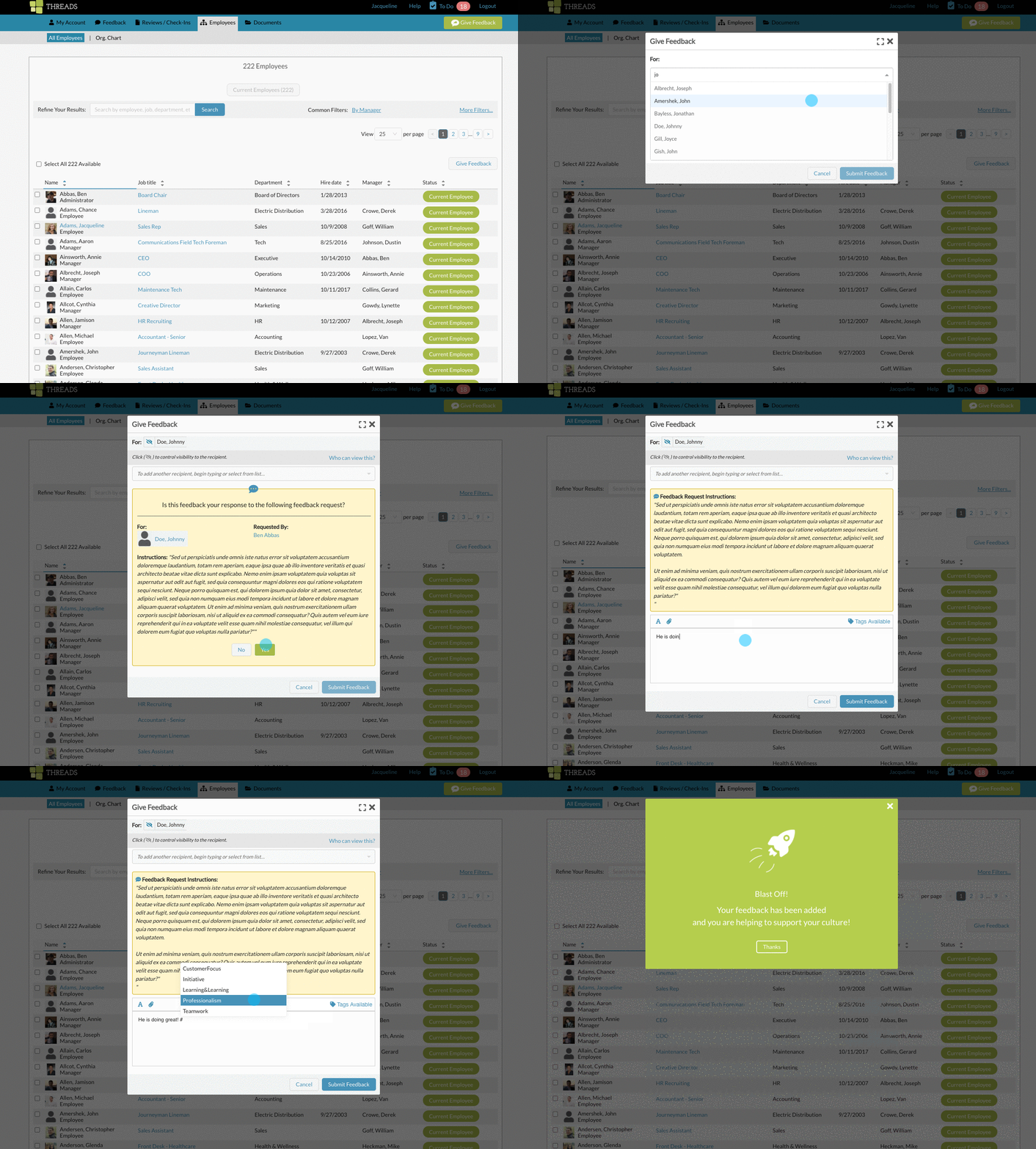
You can also complete a feedback request without going through the email process. If you are already in Threads and you know you have to complete a request. Go ahead and click on the green "Give Feedback" button on the top right.

Once you input the name of the person you are to supply feedback for, the instructions will appear. Click, YES to confirm this is a feedback request.
Need more help? Check out "How Do I Leave / Give Feedback For Others And Myself?", "Shout Out: Making Feedback Visible to Recipients", and "How Do I View / Edit / Delete The Feedback I Have Given?".
0 Comments