As a manager, you along with admins and employees can make feedback that you give visible to the recipient.
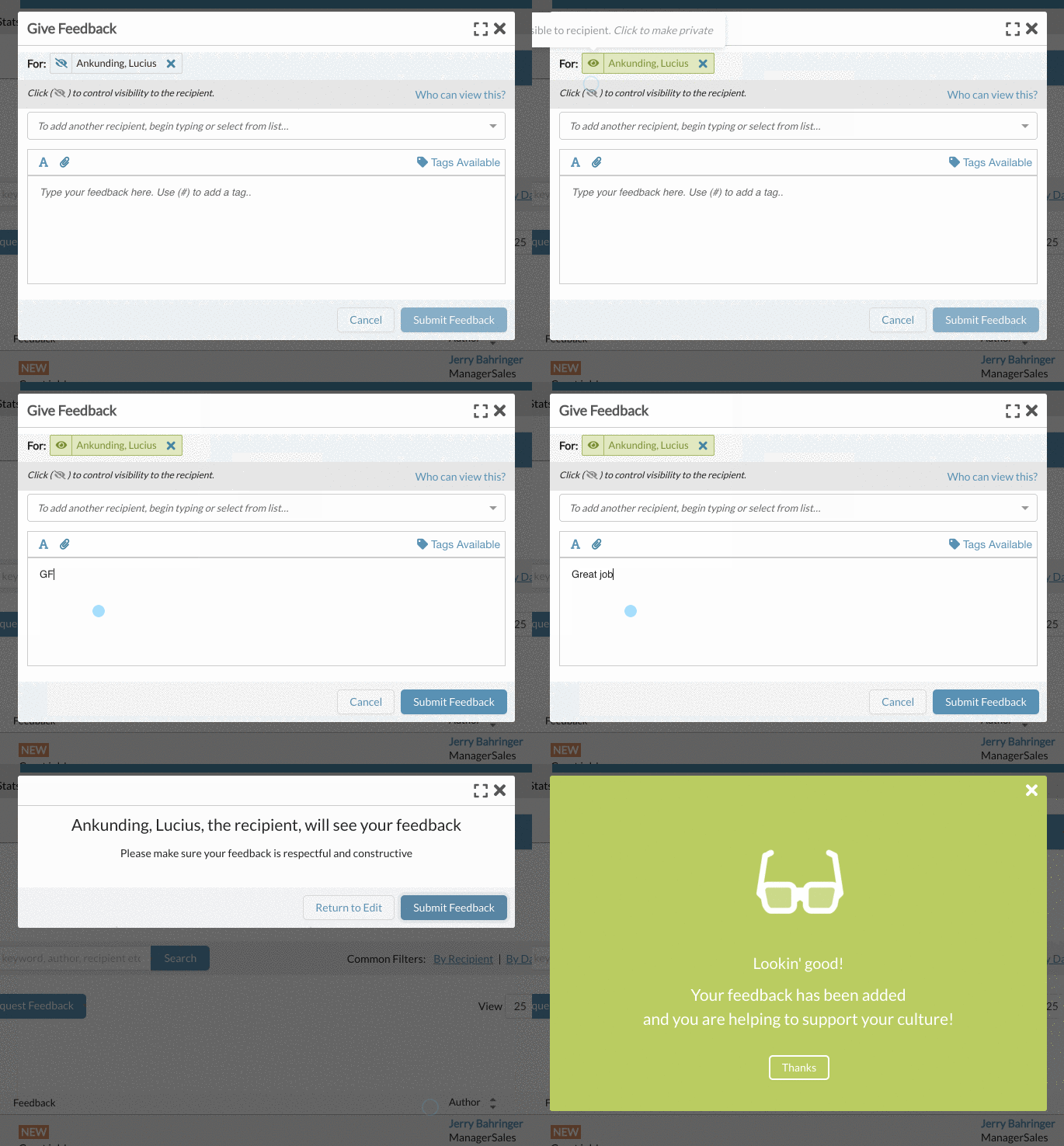
First, click the green give feedback button on the top of the screen (Or access the give feedback modal from an employee profile, a review, etc.) to open the give feedback modal.
Then select the eyeball next to the name to turn the eyeball "on",

once "on" the eyeball will be open and the background will be green, indicating the feedback will be visible to the individual you are giving feedback too.

Next, write your feedback and / or attach a file
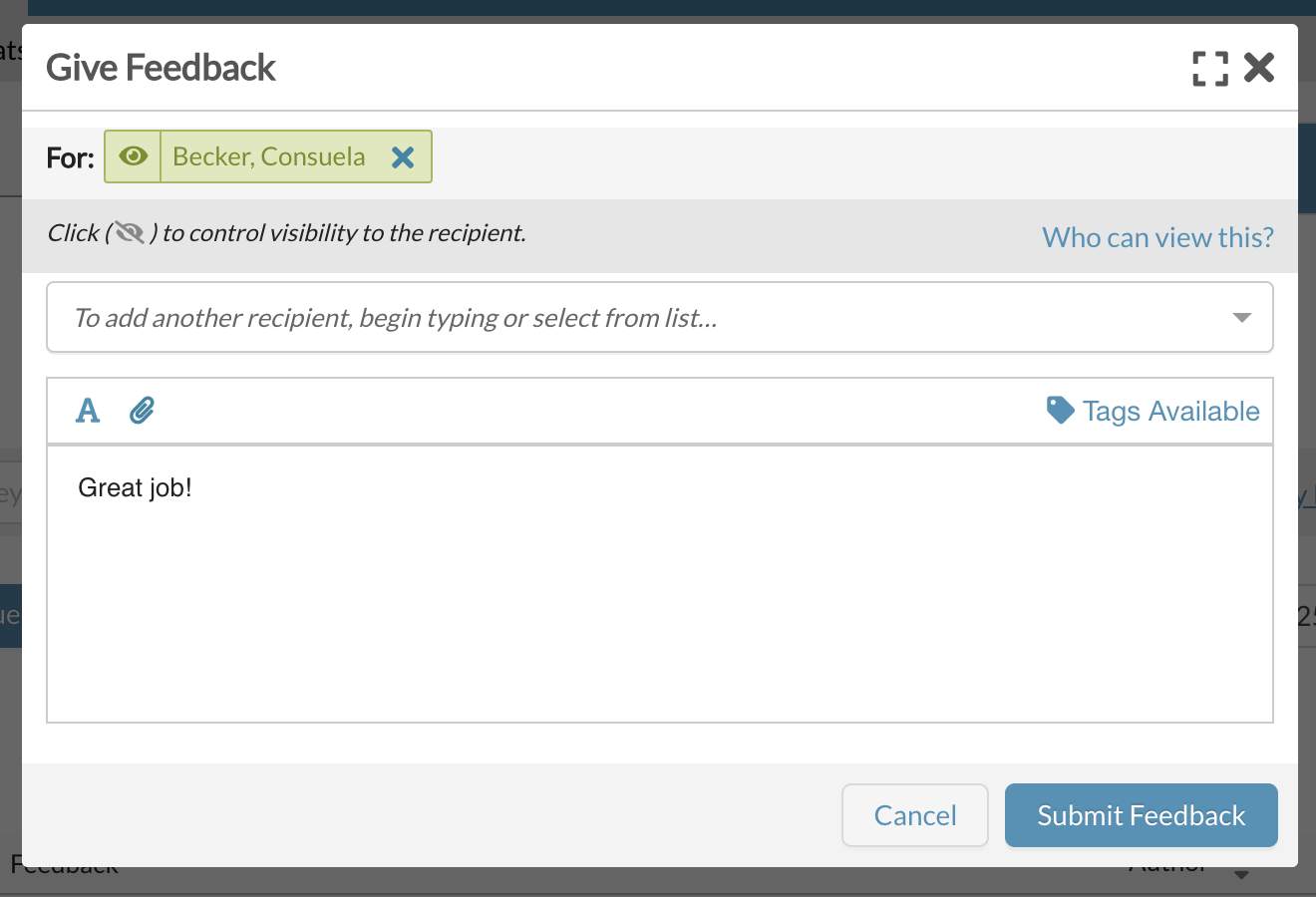
and then select "Submit Feedback".
You will then be prompted to confirm that you want to make the feedback visible to the recipient.

Select "Submit Feedback" again.
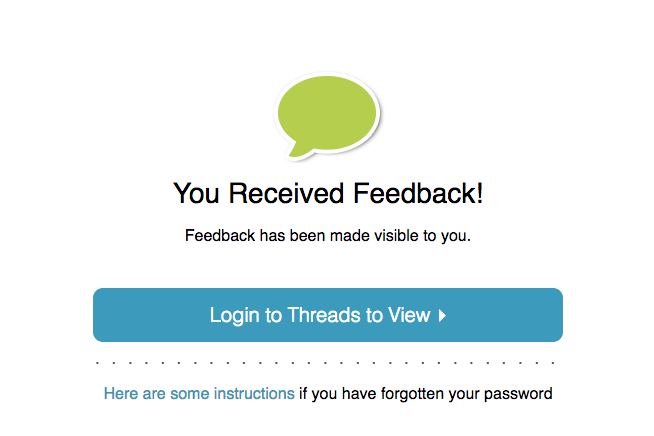
After 30 minutes, the recipient will receive an email alerting them that they have had received feedback. (This 30 minute delay exists to make sure an author of feedback has time to modify the feedback or change the visibility setting if needed)
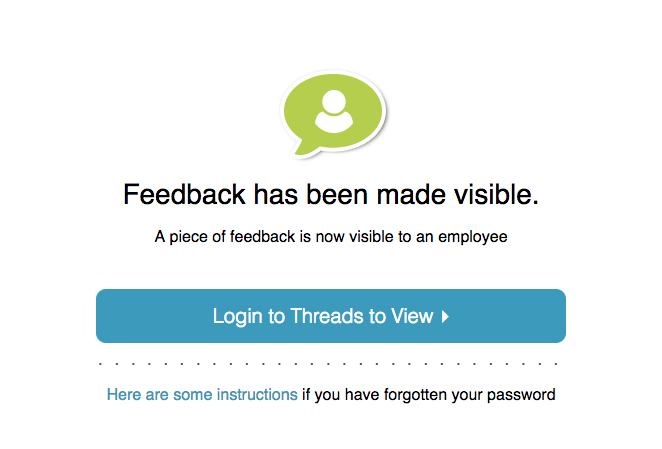
As an manager, both yourselves and admins can monitor what pieces of feedback are being made visible to who. You can turn on the "Feedback made visible to..." email notification to receive an email when feedback is made visible. Check out the article on Unfollow Personal Email Notifications (Managers)
0 Comments