As an admin user, go to "Documents" in the main navigation and select "Hiring" from the sub navigation. Select the vacant job from the Vacant Job list by clicking on the vacant job name.

Once at the Vacant Job Detail page, select the blue button that says "Add Applicant" towards the bottom of the page.

You will then be asked if the applicant / interviewee exists in the system. If you already have your applicant added to Threads, select “Yes”. Otherwise, you will need to do an extra step and select “No” to create a new applicant.

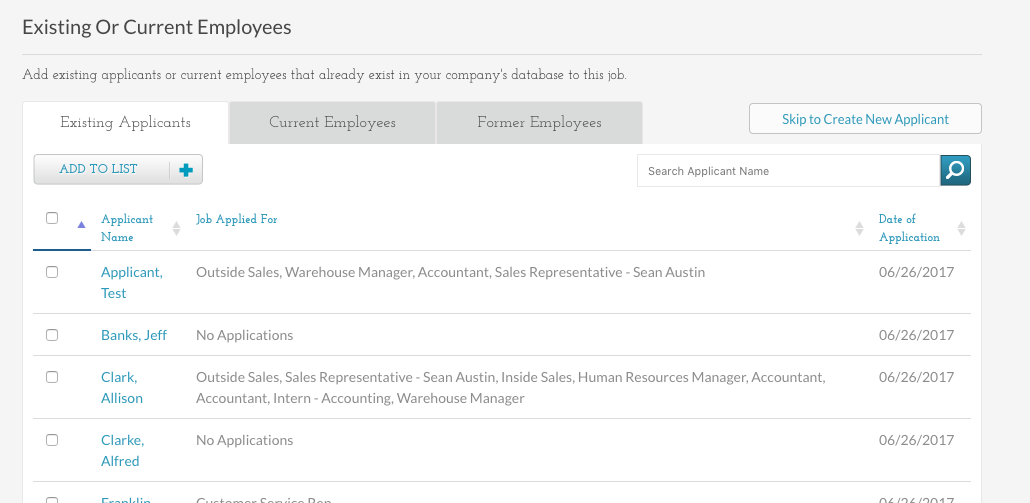
Once you select Yes or have your new applicant created, you will pick from the list such as shown below by selecting the checkbox next to their name and selecting the button "Add to List".
After adding, you will be taken back to the vacant position and your applicant should be showing up at the bottom within the "Job Applicants" list. Click on the applicant name from the list.

You will then need to complete the interview data form. At the bottom of the form, there is a drop down called "Overall Recommendation", select "Highly recommend hire" and then click the blue button called "Save and Complete".

Now within the Applicant's profile, you will then see a new button appear next to the applicant profile picture called "New for this Position". Click this button to hire this employee.

0 Comments