As an admin user, you can update the org chart. Go to "Employees" in the main navigation and then select "Org Chart" in the sub navigation.
You can click and drag to navigate around the chart or scroll with the arrows on the left hand side. The zoom controls are also on the left side. Click on a department name to expand or collapse it.
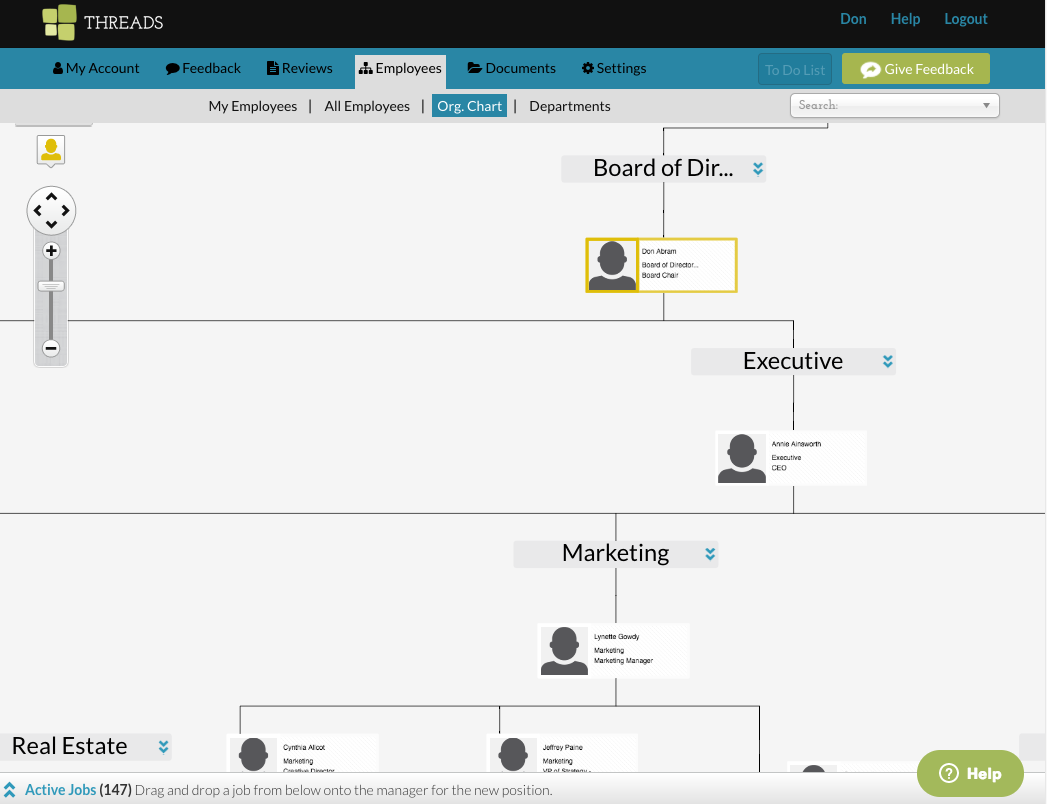
At the bottom of the org chart is a drawer with all the active jobs. Click on the bar to open the drawer.

You will now be able to select an active job from the drawer and drag and drop it on the org chart to create a vacant position that you can now assign to either an applicant or a new employee.
To modify reporting structures within the org chart, click on an employee you’d like to assign to a different manager and drop them on top of that manager. Remember, any changes you make on the org chart will be updated automatically (there is no need to save changes) and those changes will populate throughout Threads.
0 Comments