Core values and core value review criteria for reviews are accessible within company settings.
As an admin user, go to "Settings" in the main navigation. From there, select “Core Values”. Each core value can be edited or removed. You can also add new core values by selecting “Add a Value” at the bottom of the page. Make sure the total weighted amount equals 100% when modifying the values. (For more on creating core values for your organization visit http://www.threadsculture.com/blog/company-culture/how-to-create-your-own-core-values-list/)

Core values automatically populate the feedback tags available for your team. If you change or remove a core value, the old one will not be selectable anymore when the user goes to add a tag to feedback. You can however, still search for instances of those old tags used under All Feedback - filters - and tags.
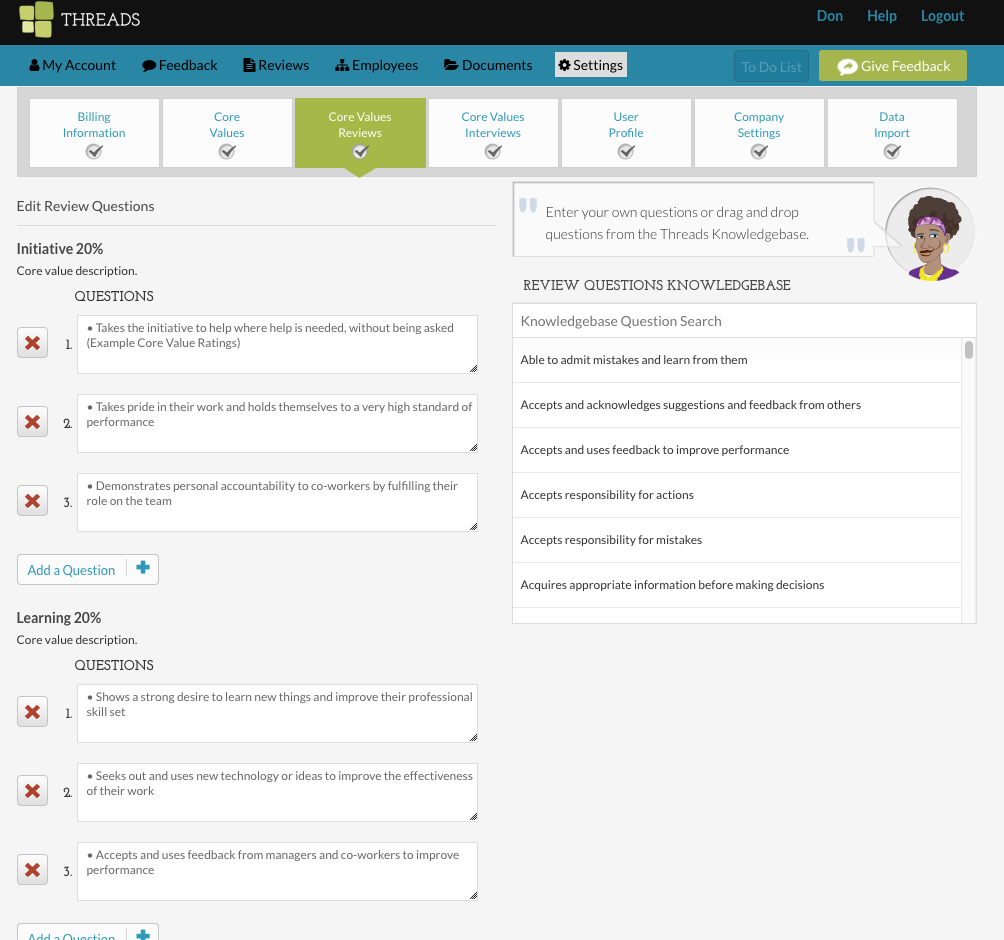
To edit or create the core values criteria in which an employee will be measured, go to the “Core Values Reviews” section within Company Settings. Here, you can remove (selecting the red “x”) or add (selecting the “Add a Question” button) specific criteria to each core value.
These criteria will show up on every employee’s review under the values score section. See an example of the review form and scoring below:
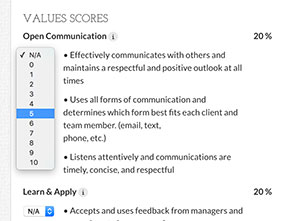
How they score here will impact where they appear on the vertical axis of the Threads graph (shown below).

On the right hand side is the “Review Questions Knowledgebase” that you can use at any time to help populate the questions. Just drag and drop from the knowledgebase onto the question you would like to add.
Make sure you select “Submit” at the bottom when you are done to save your work.

0 Comments